
Trusted by 100K+ creators
Import and Edit NotebookLM Audio Overviews
Upload your NotebookLM podcast into Jellypod to unlock script editing, voice control, and instant content publishing.
Import an Audio Overview7-day free trial. Cancel anytime.



4.6out of 5 on G2











Everything creators wish NotebookLM had
The most requested feature of NotebookLM, script editing and custom voices, lives entirely within Jellypod. By importing your NotebookLM (now Gemini Notebook) Audio Overview, you can now swap your host’s voices, edit the script, and even add pronunciations and background music to your podcast.
Our beginner-friendly, yet powerful, creative AI tools enable anyone to become a podcaster from the comfort of their living room.
How to use NotebookLM Import
Step 01
Download the Audio Overview
In NotebookLM (now Gemini Notebook), open the notebook and download the Audio Overview file.Step 02
Import it into Jellypod
Open a podcast, choose Import from NotebookLM under Create New Episode, pick two hosts, and drop in the MP3, WAV, or M4A file. Jellypod transcribes it and maps each speaker onto a host.Step 03
Edit, revoice, and publish
Rewrite lines, fix names, or reassign speech blocks, regenerate what you changed, and publish to Spotify, Apple Podcasts, and YouTube.
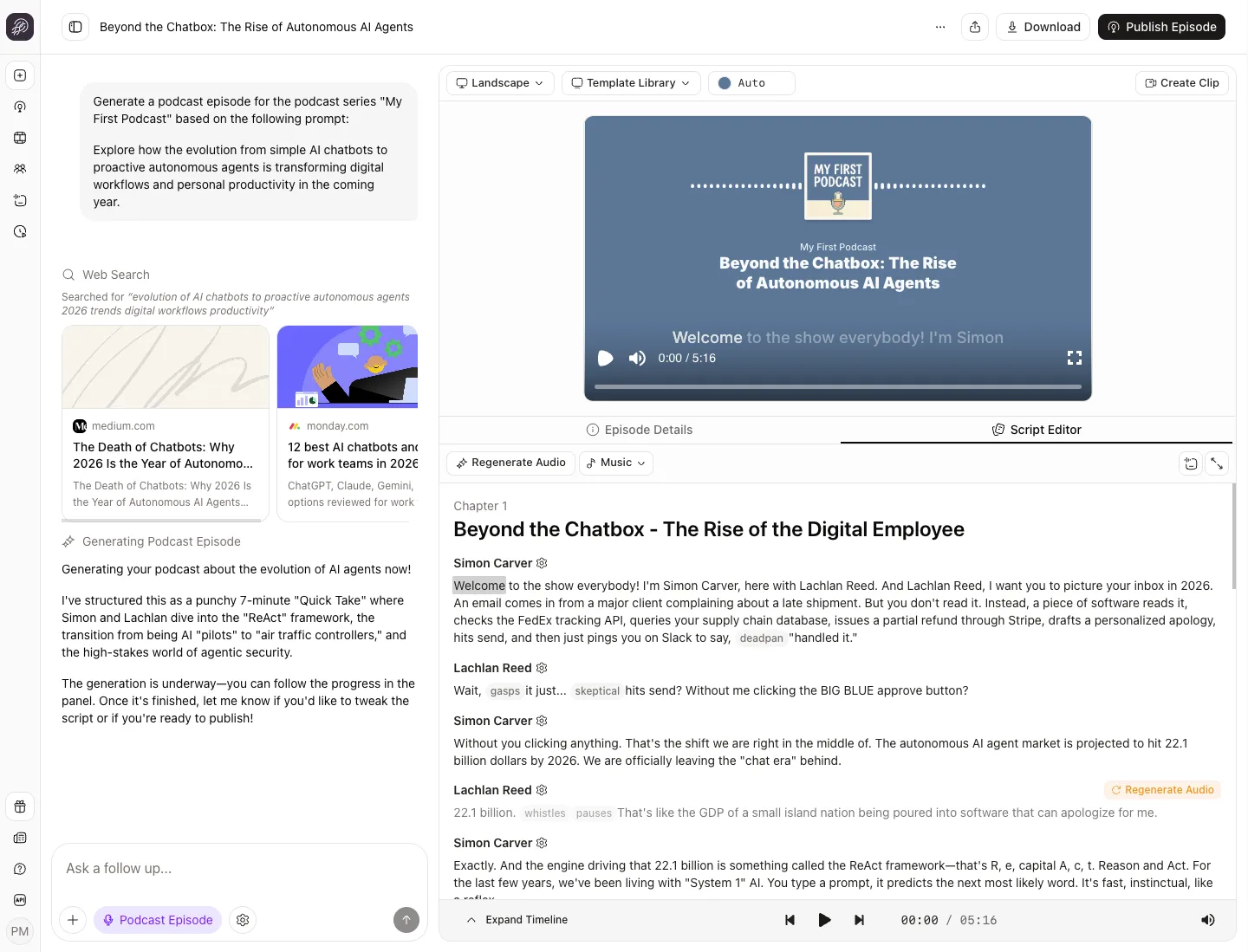
Edit the full transcript
Jellypod lays the Audio Overview out as chapters and speech blocks. Rewrite a line, fix a name, reassign a block, or regenerate one segment. Sounds like [laughter] are dropped on import.
Hosts

Marcus Hayes
Warm male voice, structured and mid-paced delivery

Claire Brooks
Sharp American female voice, firm editorial delivery
Choose between 1-4 hosts per episode.
Swap in your own hosts
The two speakers become two hosts you pick. Choose from 3,300+ library voices, including British and Australian accents, across 121 languages, or use a clone of your own voice.




Publish a real podcast
Generate the audio and publish to your podcast’s RSS feed. Submit it once to Spotify, Apple Podcasts, and YouTube, and track listeners on every episode. You can also render it as landscape or portrait video. Read the help guide.
Stories from Ohio State, Busylike, and Johns Hopkins
It's not about replacing lectures. It's about reinforcing the arc of learning in the moments students actually have.
 Steve DeNunzioMBA ProfessorThe Ohio State University
If you are already investing in content marketing, Jellypod is a must-have to integrate into your strategy.
 Vadi EfeFounderBusylike
It's a digital version of myself and a way to amplify [my voice] without having to hire another employee.
 Boi CarpenterVP Alumni RelationsJohns Hopkins University
You just dump in your information and structure your podcast. It was the easiest thing I've ever done.
 Dr. Louise LambertAssociate Professor, Psychologist
NotebookLM Audio Overview vs Jellypod import
| Feature | NotebookLM Audio Overview | Jellypod import |
|---|---|---|
| Transcript and script | ||
| Transcript and script | No script to open or edit; you can only nudge the next generation with a prompt | The full transcript as an editable script, line by line |
| Voices | ||
| Voices | Two preset voices you cannot change or clone | Any of 3,300+ library voices, or a clone of your own voice |
| Hosts | ||
| Hosts | Two anonymous hosts you cannot name or reuse | Your own named hosts, the same in every episode |
| Publishing | ||
| Publishing | A .wav download or a share link, with no RSS feed | A hosted RSS feed that reaches Spotify, Apple Podcasts, and YouTube |
FAQ
How do I get a transcript of a NotebookLM podcast?
Does importing publish the episode?
Which files can I import?
What happens to the speakers?
Can I publish a NotebookLM podcast to Spotify?
Discover more about NotebookLM Import
More from Jellypod
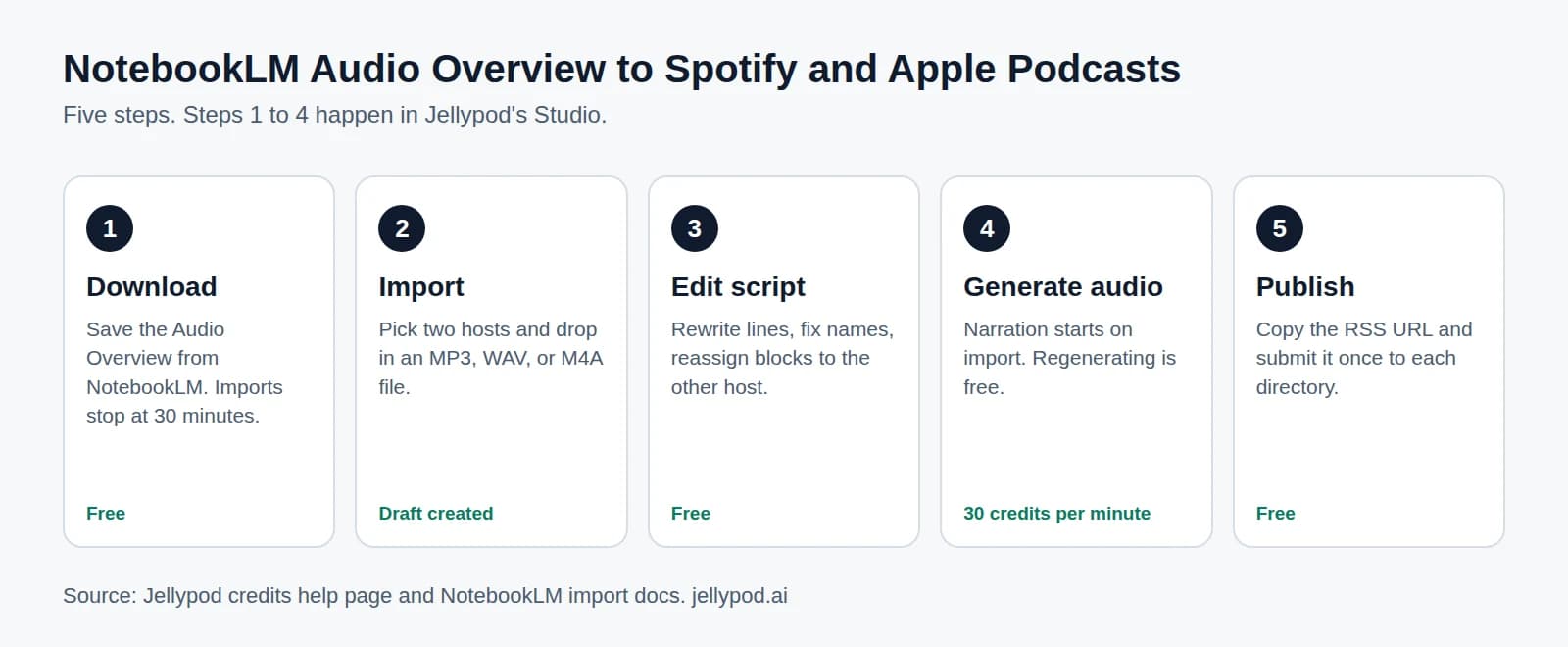
How to Publish a NotebookLM Podcast to Spotify and Apple
Get a NotebookLM Audio Overview onto Spotify and Apple Podcasts in five steps, with your own hosts, an editable script, and a working RSS feed.
Read more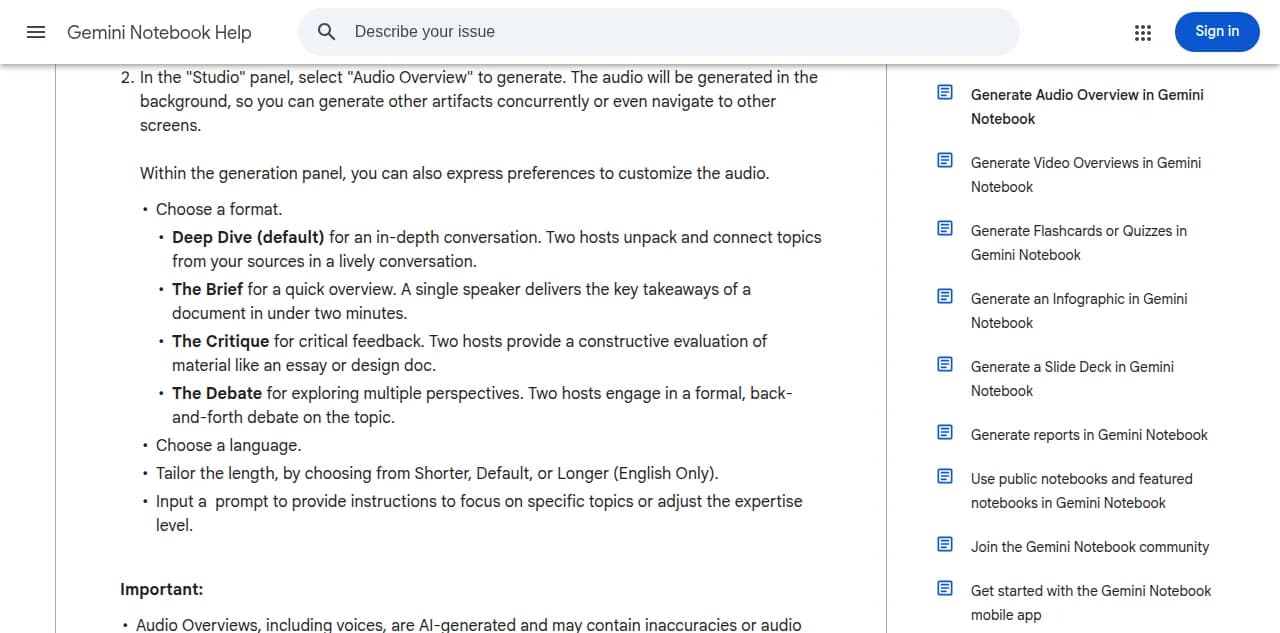
How to Change the Voices in a NotebookLM Podcast
Import your Audio Overview, map its two speakers to hosts you choose, and hear the same conversation in a new accent, language, or your own cloned voice.
Read moreBest NotebookLM Alternatives for Audio You Can Publish
Four tools compared on the step NotebookLM skips: editing the script and putting the episode on a feed you own.
Read more

Your Audio Overview is already a first draft
7-day free trial. Cancel anytime.

Keep NotebookLM for research
NotebookLM stays useful for asking questions of your sources. When the next episode starts from documents rather than audio, add the same PDFs, docs, and links to Jellypod as sources and skip the Audio Overview.