
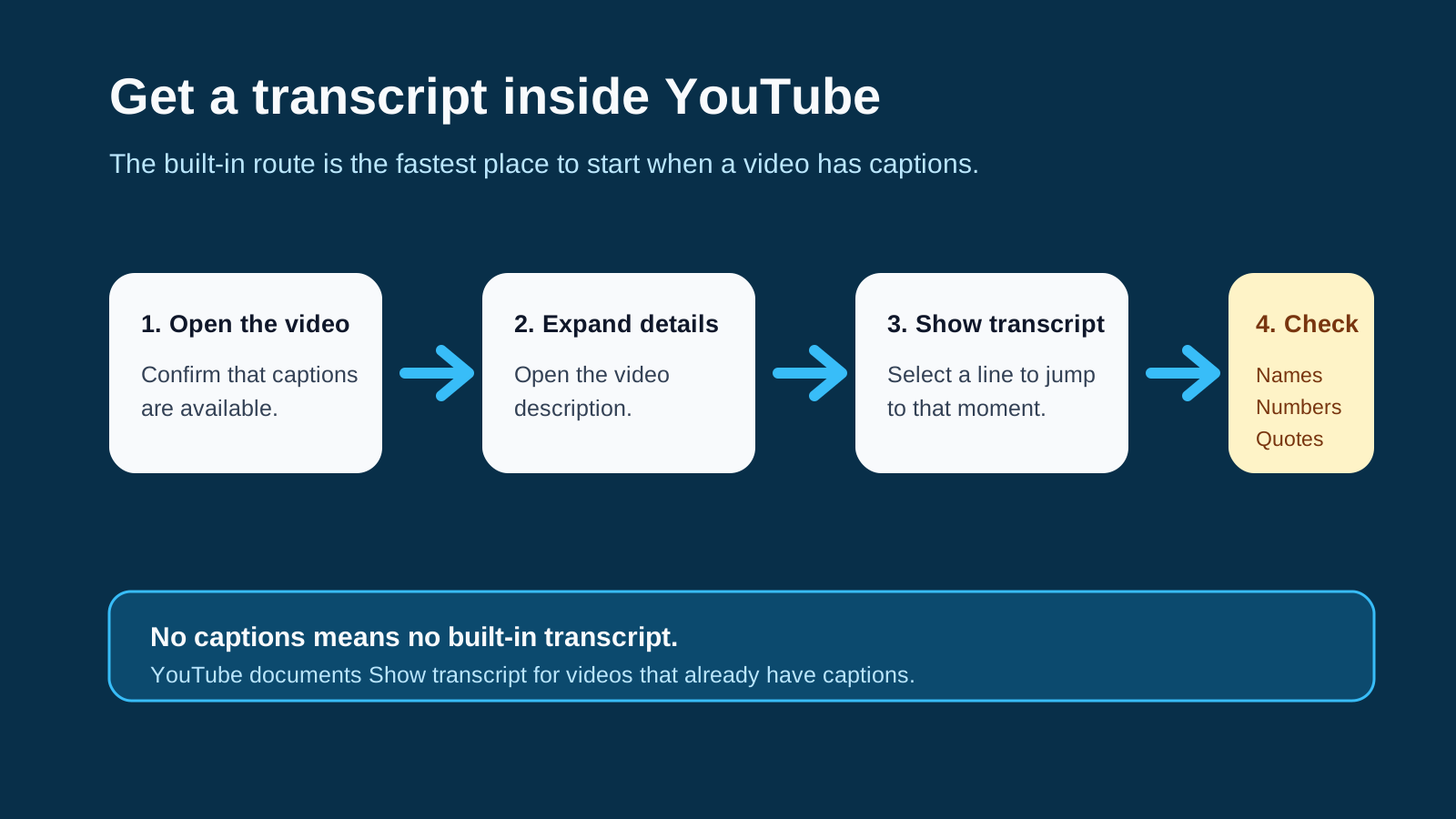
You can get a free YouTube transcript by opening a video that has captions, expanding its description, and selecting Show transcript. YouTube displays the caption text beside the video, and clicking a line jumps to that moment. For a quick reference or a short passage, that built-in panel is the simplest place to start.
If you want to reuse an approved video as source material, Jellypod's YouTube transcript extractor takes a YouTube link, extracts the available transcript, and adds it to a new podcast episode as a source. The official YouTube Data API is another option for videos you control, but it does not let an API key download arbitrary public transcripts.
How do you see a transcript on YouTube for free?
YouTube's current help page gives a short process:
- Open a video that has captions.
- Expand the video description.
- Select
Show transcript. - Click any transcript line to move the video to that point.
The transcript scrolls with the video. Depending on the video and your YouTube interface, the panel may also show details such as chapters, people, or places mentioned in the video.
YouTube documents this as a viewing feature. It does not promise a universal transcript download button in the panel. On a desktop browser, you may be able to select the visible text and copy it into a document. Check the pasted result before using it. Timestamps, line breaks, and repeated text can come across differently as YouTube changes the interface.
If Show transcript is missing, first check whether the video has captions. YouTube says the transcript is available for videos with captions, so there may be no transcript to display when a creator has not uploaded captions and YouTube has not generated them.
Can you download any public transcript with the YouTube Data API?
No. The official API is an owner-authorized caption-management route, not an open transcript scraper.
Google's captions.download documentation says the caller must have permission to edit the video. The request requires OAuth 2.0 authorization with an accepted YouTube scope. An API key alone is not enough. A request without the necessary permission can return a 403 forbidden response.
The complete authorized flow has two parts:
- Call
captions.listfor a video you are allowed to manage. That response identifies the available caption tracks, but does not contain their text. - Pass the selected caption track ID to
captions.download. Google can return the original track or convert it toSRT,VTT,SBV,SCC, orTTMLwith thetfmtparameter.
The download method currently costs 200 YouTube Data API quota units per call. That number is a quota cost, not a promise about how many transcripts a project can retrieve. Your available daily quota and the permissions on each video still control the workflow.
Use this route when your organization owns the YouTube channel and needs caption files for an internal archive, accessibility process, or publishing system. It is the wrong route for copying the transcript from an unrelated public video.
Which transcript method should you use?
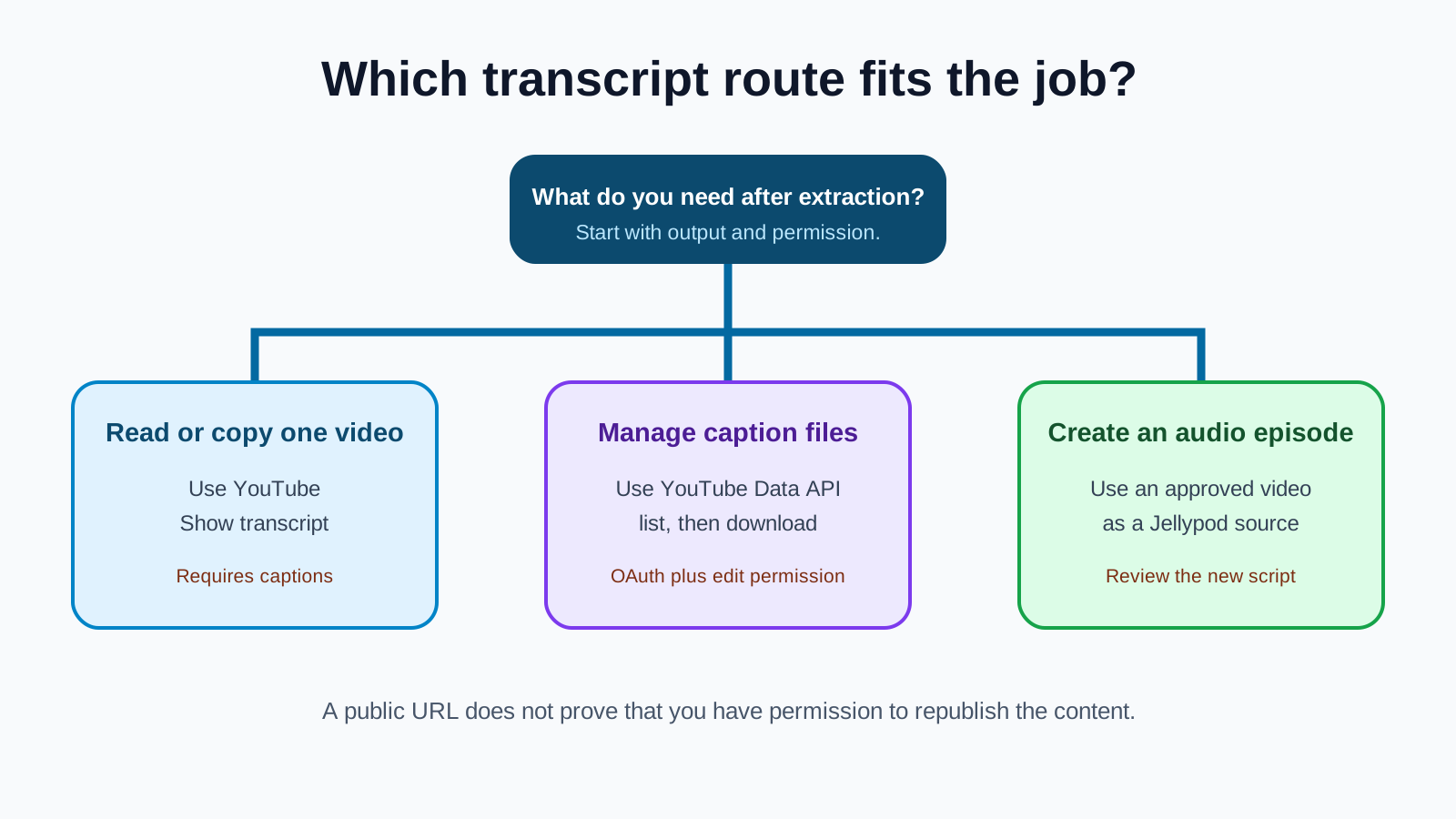
Choose the method based on what you need after the text is extracted.
| Method | Use it when | What the documentation confirms | Main constraint |
|---|---|---|---|
YouTube Show transcript | You need to read or copy part of one captioned video | Displays the full caption transcript and lets you jump by line | No universal file export is documented |
| Jellypod | You have permission to reuse a video and want its transcript as a source for an episode | Accepts a YouTube link and adds the extracted transcript to a new podcast episode | Built around podcast creation rather than a standalone caption archive |
| YouTube Data API | You manage the video and need a caption file | Authorized downloads support several timed-text formats | Requires OAuth and edit permission for the video |
| A third-party transcript tool | You need a text export or another workflow the YouTube panel does not provide | Varies by provider | Check access, output, retention, and terms before submitting a URL |
For one video, start inside YouTube. For a channel your team manages, use the authorized API if your developers need structured caption files. Use Jellypod when the transcript is an input rather than the finished product, such as turning a recorded webinar, lecture, or interview into a new audio episode.
How do you turn a YouTube transcript into useful source material?
A transcript is a record of speech. It is not automatically a finished article, training script, or podcast episode.
Start by preserving the connection to the original video. Keep the video URL, title, channel, and access date alongside the transcript. If timestamps matter, retain them until you finish checking the text. They make it much easier to return to a questionable name, number, or quotation.
Then review the transcript against the audio. Auto-generated captions can mishear names and specialized terms. Multiple speakers may also be hard to distinguish if the caption track does not identify them. Do not silently treat machine-generated captions as a human-verified record.
For content reuse, outline what the new format needs to accomplish. A training episode may need a short setup, a clear sequence, and a recap. A research note may need direct quotations with timestamps. A podcast discussion may need two distinct host roles and explicit transitions. The transcript supplies evidence and wording, but the new structure should fit the audience.
Can Jellypod extract a transcript and turn it into a podcast?
Yes. Jellypod accepts a YouTube link as an episode source. It extracts the available transcript and uses that source when drafting the episode.
This is useful when your team already has a recorded lecture, webinar, briefing, or interview and wants to adapt it for listeners. You can review the draft script, change what the hosts say, select voices, and generate the audio inside the same production workflow. The original transcript remains source material rather than copy that must be read word for word.
Use only videos you own or have permission to repurpose. A public URL makes a video viewable. It does not establish that you can publish its transcript, voice, or ideas as a new work.
How should you check a transcript before publishing it?
Review the points that can change meaning:
- Compare names, dates, measurements, and quotations with the original audio.
- Keep timestamps for any passage you may quote or challenge.
- Confirm who is speaking before adding speaker labels.
- Remove repeated caption fragments introduced by the player or copy process.
- Preserve intentional pauses or emphasis only when they matter to the new format.
- Get permission for the reuse you plan, especially when the video belongs to someone else.
There is no defensible universal accuracy percentage for YouTube transcripts. Results depend on the caption source, recording quality, accents, terminology, crosstalk, and whether a human edited the captions. Test the specific video you plan to use.
Frequently asked questions
Can I get a transcript if a YouTube video has no captions?
YouTube's built-in transcript panel depends on captions. If the video has no caption track, Show transcript may not appear. With permission, you can download the audio or video through an approved workflow and transcribe the media separately, but that is speech recognition rather than retrieval of a YouTube transcript.
Does the YouTube transcript panel work on every video?
No. YouTube says the full transcript is available for videos that have captions. Availability therefore varies by video.
Can an API key download public YouTube captions?
Not through YouTube's official captions.download method. Google requires OAuth authorization and permission to edit the video. The method operates on a caption track ID, not just a public video URL.
Should I remove timestamps from the transcript?
Keep them while checking the text. Timestamps are useful for finding the original passage and correcting errors. Remove them only when the final output needs clean prose, or preserve them when the reader needs to navigate the video.