AI

YouTube Transcript Extractors Compared (2026)

The Jellypod Team
· 8 min read

The right YouTube transcript extractor depends on your next step. Use YouTube's built-in transcript panel when you only need to read or copy text. Use Tactiq when a .txt download suits the job, Descript when you already have the video file and want to edit media through its transcript, or a developer option when you control the workflow. Jellypod's extractor fits a different job: it takes an approved YouTube link and adds the transcript to a new podcast episode as source material.

This comparison was checked against each provider's official documentation on August 4, 2026. We did not run a cross-tool accuracy or speed test, so no benchmark, winner, or performance percentage is presented here.

Five criteria for comparing YouTube transcript tools

What should you compare in a YouTube transcript extractor?

Start with the input. Some tools accept a public YouTube URL. Others require you to upload a video file. Those are different workflows, even when both product pages use the phrase "YouTube transcript generator."

Then check the output. Plain text is useful for notes and search. A timed subtitle file such as SRT or VTT is better for captions. Speaker labels matter for interviews, while a direct handoff into an editor or podcast studio can save a separate import step.

Permissions belong in the comparison too. The official YouTube Data API requires authorization and edit access to the video for caption downloads. Third-party tools follow their own access methods and terms. Before submitting a client, employee, student, or patient video, confirm that the service and your organization allow that use.

Finally, separate retrieval from transcription. A retrieval tool pulls an existing caption track. A transcription tool analyzes uploaded audio or video and creates new text. That distinction affects what the tool can process, how you verify the result, and what permissions you need.

How do the documented options compare?

OptionInput documented by the providerOutput or next stepDocumented limitationHands-on test for this update
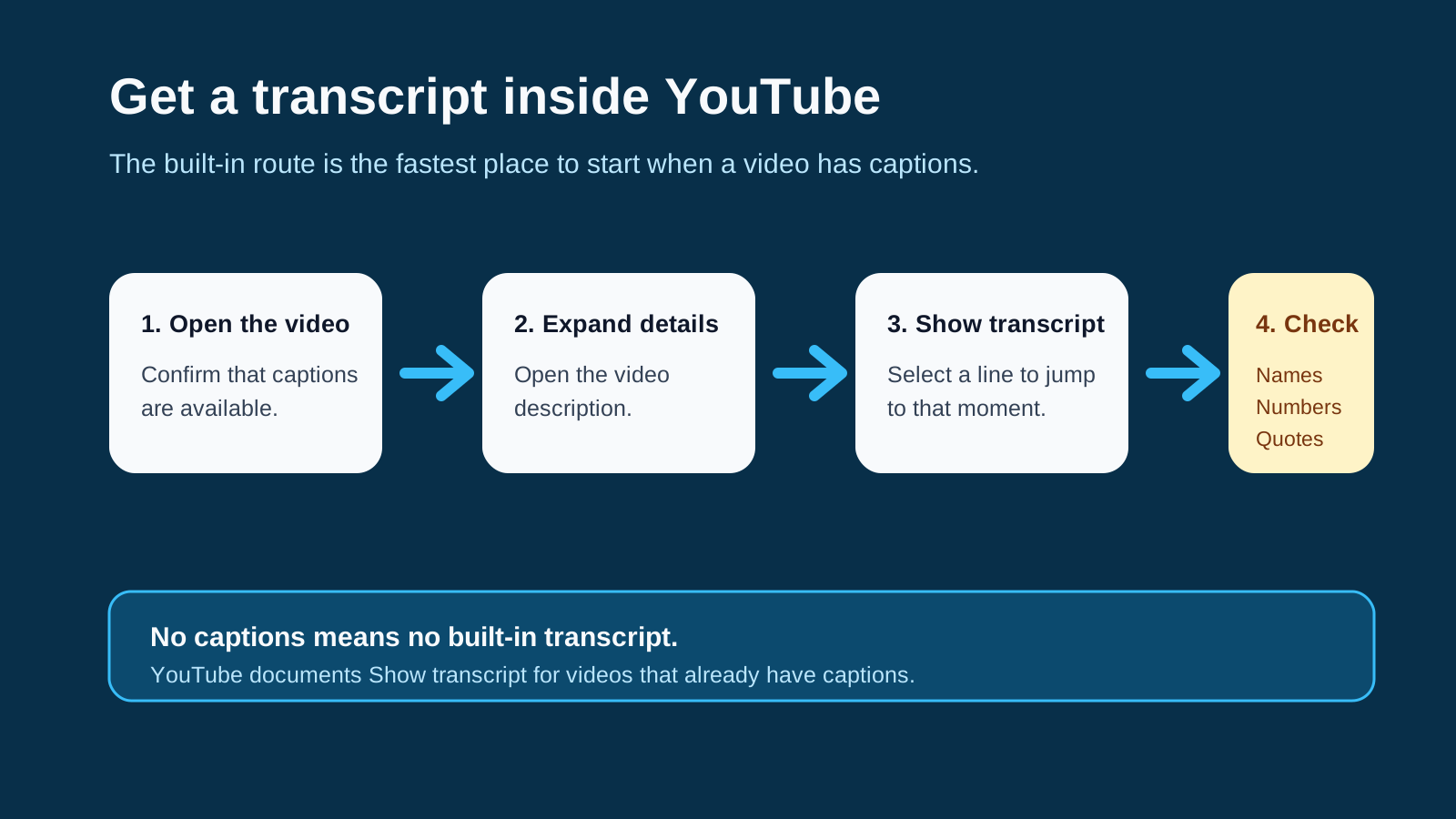
YouTube Show transcriptA YouTube video with captionsRead the transcript and jump to a timestamp by selecting a lineYouTube does not document a universal file download from the panelNot tested
JellypodA YouTube URLExtract the transcript and add it as a source for a new podcast episodeThe workflow is designed around episode creation, not caption-file managementNot tested
Tactiq YouTube Transcript GeneratorA standard YouTube video URLCopy the transcript or download a .txt fileTactiq documents English-only input, one video at a time, and no YouTube Shorts supportNot tested
Descript YouTube Transcript GeneratorAn uploaded video fileEdit the transcript and export text, document, or subtitle formatsThe documented flow begins with a local video upload rather than a public URLNot tested
YouTube Data APIA caption track for a video the authorized user can editDownload the original track or request a supported timed-text formatRequires OAuth authorization and edit permissionNot tested
youtube-transcript-api Python packageA YouTube video IDFetch available manual or generated transcripts in codeIt is an independent package, not Google's official Data API, and its maintainer warns that cloud IPs may be blockedNot tested

The table compares published workflow facts, not output quality. A provider's claim is not a substitute for a test with your recording, language, terminology, and permission model.

Is YouTube's built-in transcript viewer enough?

It is enough for a quick reference. YouTube Help says you can view the full transcript for a video with captions and select a line to jump to that point in the video.

The panel is a good first choice when you need one quotation, want to scan a talk, or need to find where a topic appears. On desktop, you may be able to select and copy the visible text, but YouTube does not document that copy behavior as a structured export feature. Expect to check line breaks and timestamps after pasting.

Choose another method if you need a repeatable file export, a new transcription from uploaded media, or a downstream production workflow.

What does Jellypod do with a YouTube transcript?

Jellypod's current tool page accepts a YouTube link and extracts the transcript for use inside Jellypod. The documented third step adds the transcript to a new podcast episode as a source.

That makes Jellypod relevant when a professional team owns or has permission to reuse a lecture, webinar, interview, or briefing. The transcript can ground a new episode draft, and the team can then review the script, select hosts and voices, and generate audio. It does not need to become a verbatim reading of the original video.

We did not test Jellypod against a corpus for this update. Claims about accuracy, extraction speed, speaker detection, or language performance are intentionally omitted.

Transcript retrieval compared with creating a new transcript from media

What does Tactiq's YouTube transcript tool export?

Tactiq's help center says its free YouTube Transcript Generator accepts a video URL, then lets the user copy the result or download a .txt file. The transcript can also be uploaded to a Tactiq account for prompts, summaries, or analysis.

The same help page sets clear boundaries. It says the generator handles standard YouTube videos one at a time, supports English only, and does not support YouTube Shorts or bulk transcription. Those limits are more useful than an inflated feature count because they tell you quickly whether the tool fits your material.

This workflow suits someone who wants a plain-text file and does not need a media editor or podcast handoff.

When does Descript make more sense?

Descript's official YouTube transcript generator page documents a file-based workflow. You open a Descript project, upload the video file, identify the language and speakers, then edit and export the transcript. Listed export formats include .txt, .rtf, .md, .html, .docx, and subtitle files.

Descript also connects transcript editing to video editing. That can be useful if the video itself is still being cut, corrected, or captioned. It is a larger production environment than a simple URL-to-text extractor.

Descript publishes its own speed and accuracy claims on the product page. We did not reproduce them, so they are not used as comparison evidence here.

Can developers use the official YouTube captions API?

Yes, for videos they are authorized to manage. It is not a public transcript endpoint.

Google's captions.download reference requires OAuth authorization and permission to edit the video. The method accepts a caption track ID and can return the original caption file or convert it to SRT, VTT, SBV, SCC, or TTML. Google currently lists a quota cost of 200 units for the download call.

Before that download, developers typically call captions.list to identify tracks for the authorized video. The list response describes the tracks but does not include their caption text.

This is the strongest option when a company manages its own YouTube channel and needs a controlled caption archive or publishing integration. An API key by itself cannot download arbitrary public transcripts.

What is the open-source youtube-transcript-api package?

youtube-transcript-api is an independent Python package. Its README documents fetching an available transcript by video ID, choosing languages, distinguishing manually created and automatically generated tracks, and requesting a translation when YouTube exposes that option.

It is not the YouTube Data API and it does not carry Google's authorization model. The maintainer also warns that YouTube may block requests from cloud-provider IP addresses or from clients making too many requests. That operational risk matters if you plan to put the package behind a production service.

Use it only after reviewing its current README, release history, license, and your compliance requirements. We did not install or run the package for this article.

How should you choose between the tools?

Pick the smallest workflow that produces the output you need:

  1. Use YouTube's transcript panel to read one captioned video or locate a passage.
  2. Use Tactiq when its documented English, standard-video, one-at-a-time workflow and .txt output fit.
  3. Use Descript when you possess the video file and want transcript-based media editing.
  4. Use the official Data API when your application manages caption tracks for videos your user can edit.
  5. Use an independent developer package only when your team can own its maintenance and failure modes.
  6. Use Jellypod when the transcript should become grounded source material for an editable audio episode.

Frequently asked questions

Which YouTube transcript extractor is most accurate?

This comparison does not name an accuracy winner because no shared test was run. Accuracy depends on whether a tool retrieves existing captions or creates a new transcript, along with audio quality, speaker overlap, language, names, and specialized terms. Test your own approved video and compare the result with the audio.

Which option can export subtitle files?

Google documents SRT, VTT, SBV, SCC, and TTML for authorized captions.download requests. Descript documents subtitle-file export after a user uploads and transcribes a video. YouTube's built-in transcript help page does not describe a subtitle-file export from the viewer.

Can any of these tools process every public YouTube video?

No universal coverage is established here. YouTube's own viewer depends on captions. The official API depends on authorization and edit permission. Third-party tools have their own supported inputs and can change as YouTube changes access. Check the video, the provider's current documentation, and your right to use the content.

Should I choose a transcript extractor by price?

Price changes too often to anchor a durable comparison, and this update does not publish a pricing table. Start with input, output, permission, and downstream work. Check the provider's current plan page only after the workflow fits.

Related Posts

Ready to create your podcast?

Go from idea to published episode in minutes. No recording, editing, or experience required.

Pricing on your terms

Pick the plan that works best for you

Pricing details

Start Podcasting

Publish your first episode in minutes

Open the Studio