You can make a video podcast without filming anyone. Episode templates add captions, a waveform, or host avatars to a recording already in Jellypod. The audio to video tool transcribes an upload, and a host narrates what it covers over illustrated scenes.
Jellypod covers two versions of this. For a podcast episode, the studio applies one of six fixed templates to your recording and renders it as video. For a recording that lives outside Jellypod, the audio to video tool transcribes it, and a host narrates what it covers over illustrated scenes. Neither needs a camera, lights, or a second recording pass.
Key takeaways
- A video podcast does not need a camera: captions or a waveform on an episode already in Jellypod, or illustrated scenes narrated by a host, all count.
- Jellypod episodes use one of six fixed templates (Karaoke is the default), and switching one updates the preview instantly with no generation step.
- For a recording made elsewhere, the audio to video tool takes an MP3, M4A, or WAV up to 100 MB, and a host narrates what it covers over illustrated scenes.
- Full video episodes reach YouTube by download and upload, not through your RSS feed, which shows cover art only.
- Use a short clip when you want a feed-sized piece instead of the full episode.
What counts as a video podcast?
Anything you publish as a podcast with a picture attached. Three production paths cover almost every case.
A camera recording puts hosts on screen. It is the right choice when the audience comes for the people, and it costs you a second production job on every episode.
A treatment of existing audio adds a layout to a recording you already have: captions, a waveform, or avatars. Nothing is filmed and nothing is generated.
The audio to video tool transcribes a recording, and a host narrates what it covers over illustrated scenes. This is a separate product from episode templates, and it suits a designed look more than a plain treatment.
How do you turn an existing episode into a video podcast?
In a Jellypod episode, the video renders from your audio and transcript.
- Open the episode in the studio.
- Click Video Style above the preview to open the picker.
- Choose a template and click Use.
- Set Orientation: landscape (1920x1080) for YouTube and websites, portrait (1080x1920) for Shorts and Reels, square (1080x1080) for feed posts.
- Click Download in the toolbar and save the video file.
The six templates are Classic Audiogram (waveform and cover art), Conversation (host avatars that pulse as each person speaks), Classic Captions, Full Screen Captions, Spotlight (emphasis on key words), and Karaoke (large centered captions with word-by-word highlighting). Karaoke is the default. The template docs describe each one, and you can render the same episode in more than one orientation by downloading, switching, and downloading again.
Templates have one limit worth knowing: they are fixed layouts. Episodes carry no AI-generated visuals, so if you want scenes that illustrate the topic, use the next path.
Can you make a video podcast from audio recorded elsewhere?
Yes. The audio to video tool accepts an MP3, M4A, WAV, or similar file up to 100 MB. You pick one of the visual styles, and Jellypod transcribes it, writes new narration from what it covers, has a host voice it, and draws scenes timed to that narration with word-synced captions. The result renders as a 1080p MP4.
Length depends on your plan: up to 15 minutes on Starter and Educator, 20 on Creator, and 25 on Business and Enterprise. For a longer show, use episode templates, which follow the 60-minute episode limit instead. If you are building an animated video from a script or source document rather than from a recording, Jellypod's AI video generator is the starting point.
Which option fits your show?
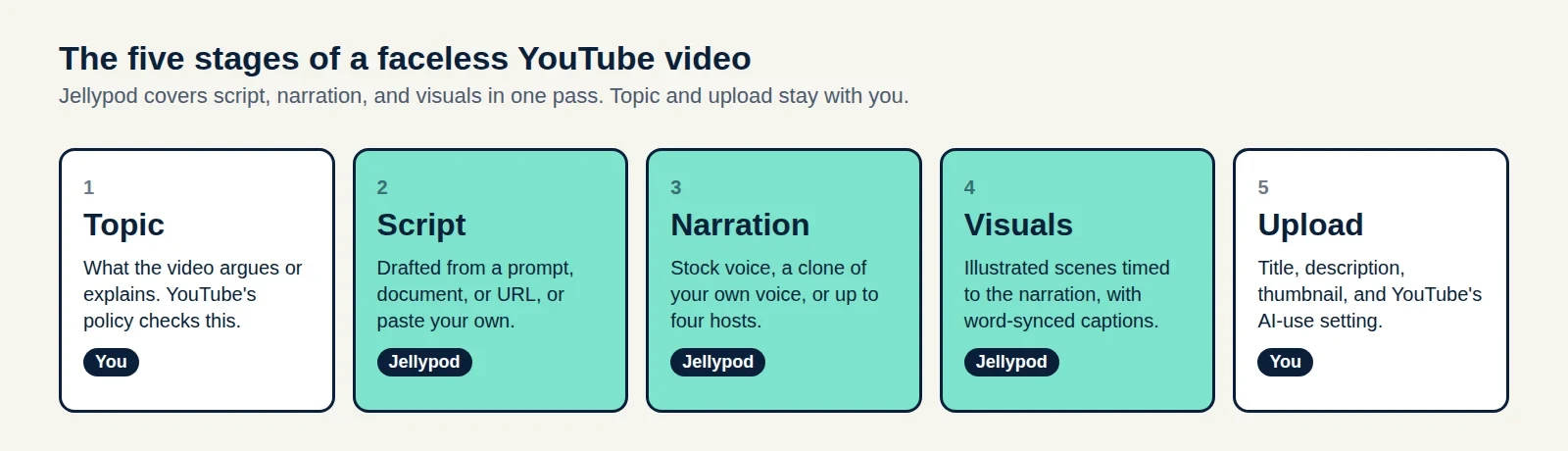
Start with templates if the show is already in Jellypod. Choose the audio to video tool when you want a recording's content retold by a host as an illustrated video. Keep the camera when the hosts are the draw. If you plan to run a channel with no one on screen, how to make a faceless YouTube channel covers the channel side.
How do you get a video podcast onto YouTube?
Download the video and upload it to YouTube yourself. Jellypod's RSS feed reaches YouTube as audio with your cover art as a still image, and video is not supported through the feed. The YouTube distribution guide has the details.
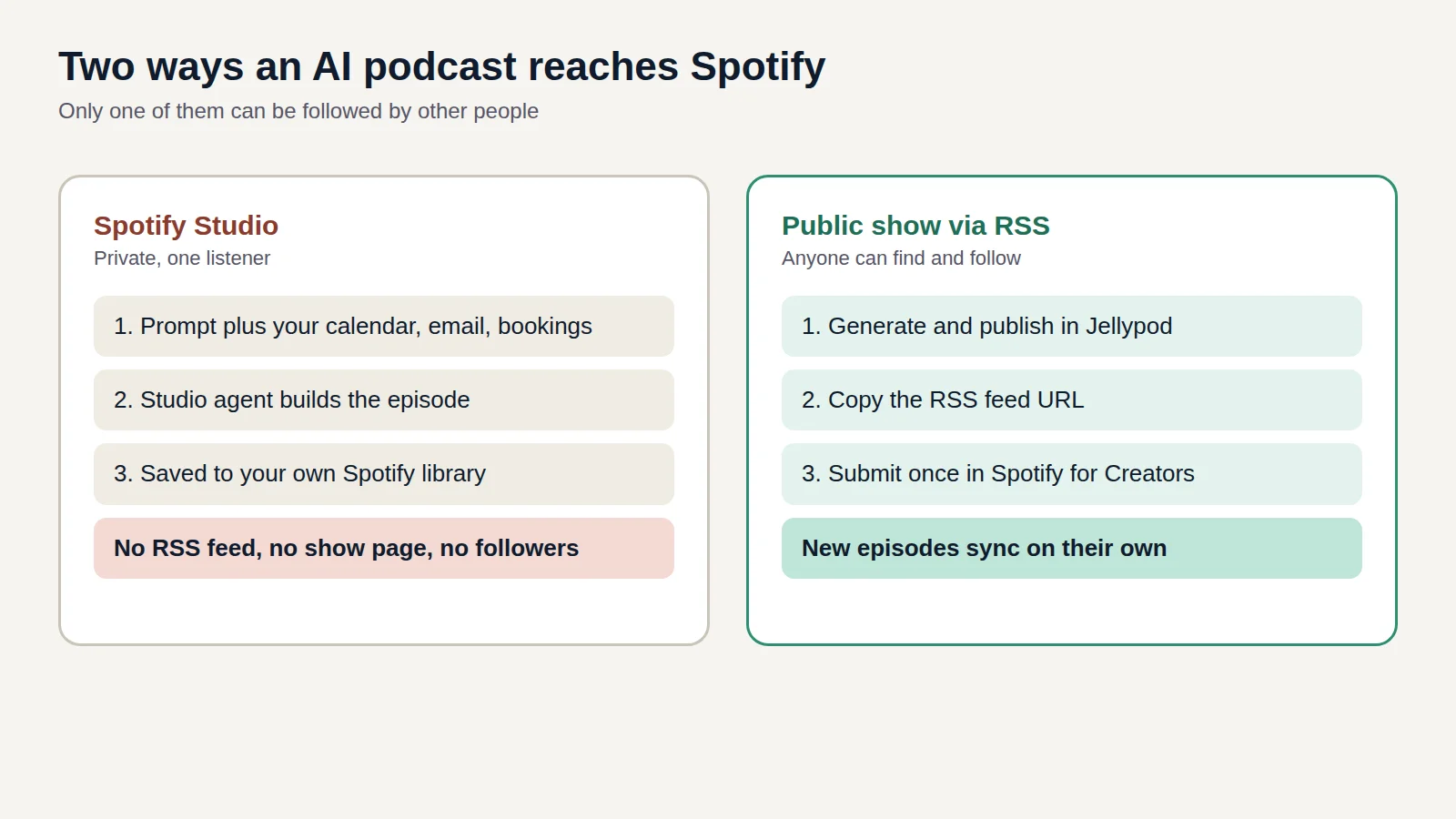
Your audio feed stays the way to reach listening apps. See how a public AI podcast gets onto Spotify for the RSS route.
Should you make clips instead of full videos?
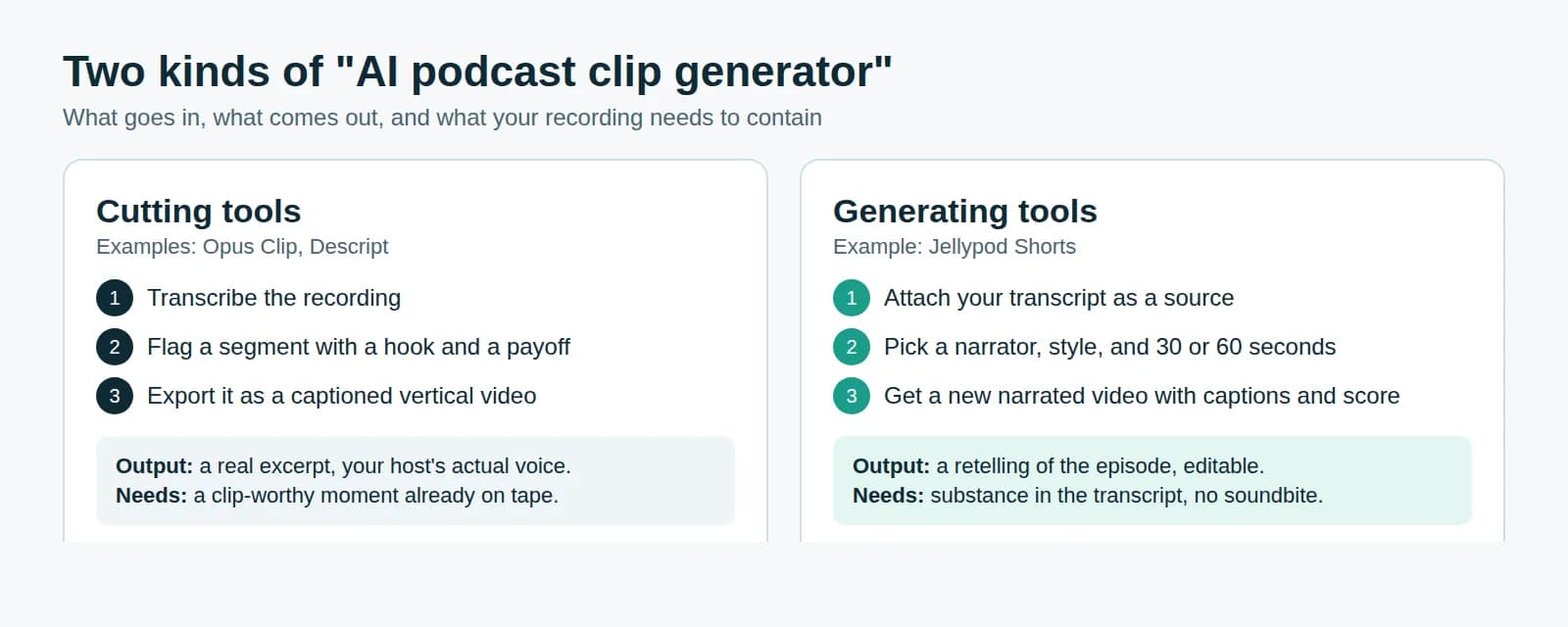
If you want short, feed-sized pieces rather than a full-length video, that is a different job. An AI podcast clip generator cuts one episode into several short videos, which suits discovery on social feeds. Many shows publish the full video for people who already follow them and clips to find new ones.