To make a NotebookLM podcast longer, open the Audio Overview customization controls and choose Longer before you generate. NotebookLM (now called Gemini Notebook) has no field for exact minutes, and Google documents the Shorter, Default, and Longer options for English only.
If you need a specific runtime, Jellypod works the other way around. You pick a target length from 3 to 60 minutes, it writes the script to that target, and you can cut or rewrite any line before audio is generated.
Key takeaways
- In NotebookLM, choose Longer in the Audio Overview customization controls, then generate again. Google does not publish a minute range for it.
- Google documents Shorter, Default, and Longer for English Audio Overviews only, and there is no exact-minutes field.
- Playback speed changes how fast you hear the audio, not how long the file is.
- Jellypod has a target-length setting with nine presets from 3 to 60 minutes, and the script stays editable before audio exists.
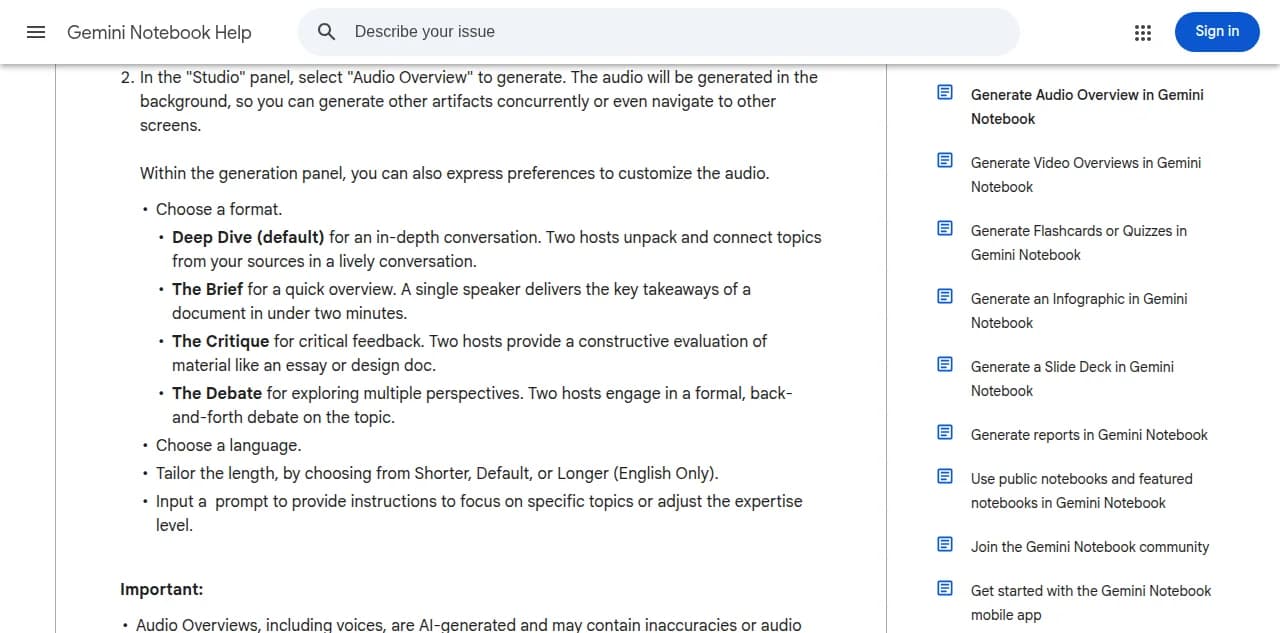
Google's Audio Overview help page: length is a three-way choice (Shorter, Default, Longer), English only, with no minutes field.
Google renamed NotebookLM to Gemini Notebook on July 16, 2026. It is the same standalone product, and the steps below apply to both names.
How do you make a NotebookLM Audio Overview longer?
Open or create a notebook, add your sources, select Audio Overview in Studio, and open its customization controls. Choose Longer and generate. Google's Audio Overview help lists the choices as Shorter, Default, and Longer.
Longer only helps if the sources give it more to say. Add the missing source, or use the focus prompt to name a subtopic that the default pass skipped. Then listen to the result, because Google does not state how many minutes any preset produces.
Can you set an exact length in NotebookLM?
No. The generation controls have no minutes field, and the length options are marked English only. NotebookLM can produce Audio Overviews in 80+ languages, but in another language you should not expect the length presets to appear.
The focus prompt can narrow scope, not promise a duration:
Create a concise orientation for new faculty. Cover the revised grading deadline and exception process. Skip the history section.
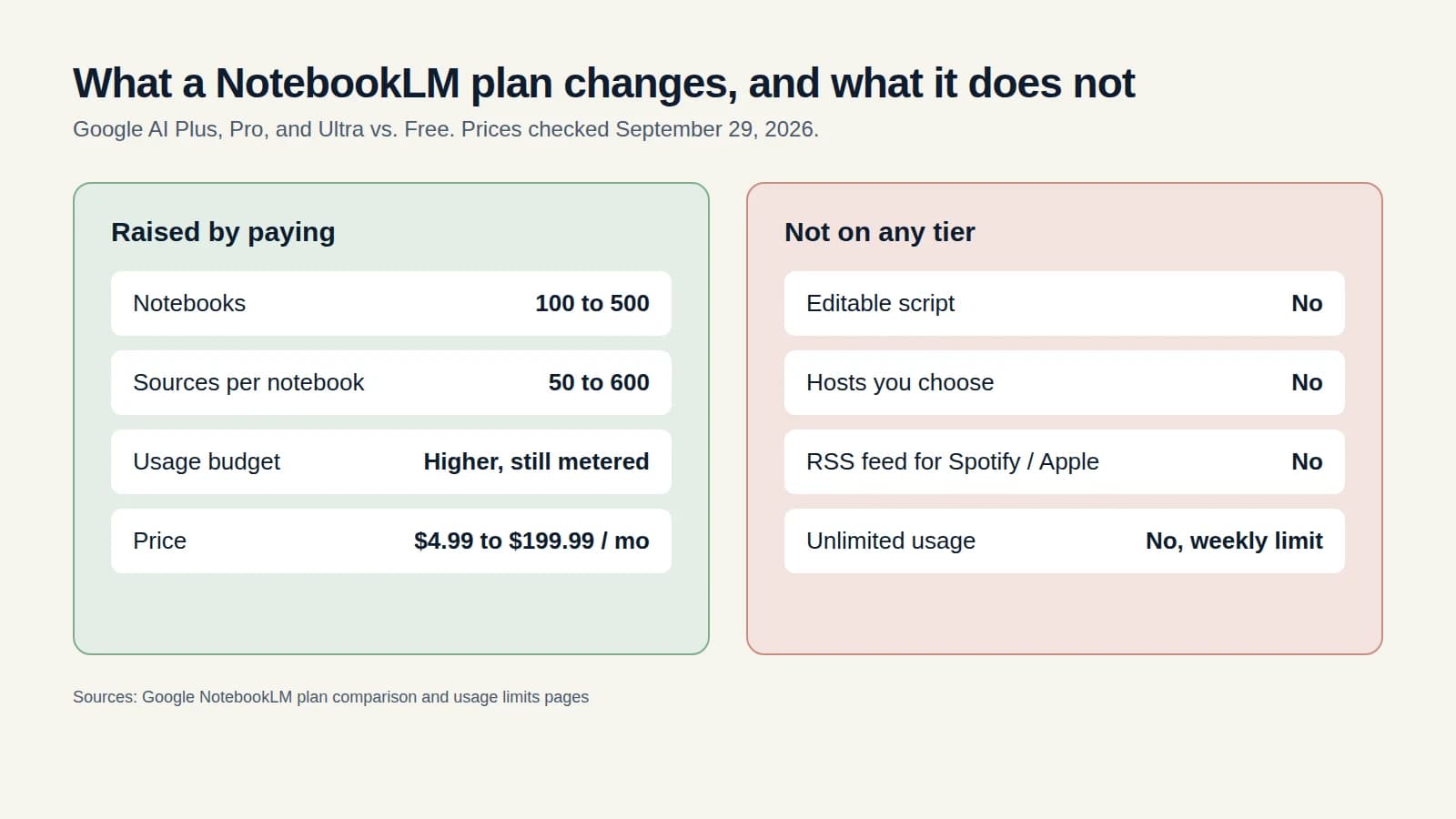
Paying Google more does not change this. The paid tiers in NotebookLM pricing raise usage limits and add features, but none of them adds a length control to the Audio Overview.
How do you make a NotebookLM podcast shorter?
You have three levers, and they are worth trying in this order:
- Select fewer sources. Google's source guide says to select a specific set of sources when you want the model to use only part of a notebook. Twelve readings and a policy appendix will not become a three-minute orientation.
- Choose Shorter, or switch to The Brief. Google describes The Brief as one speaker delivering a document's key takeaways in under two minutes. It is a different format, with one voice instead of two, so it changes the shape as well as the clock.
- Narrow the focus prompt to the one decision the listener needs.
Playback speed is not a fourth lever. It changes how quickly you hear the audio, and the file stays the same length.
How do you set the exact length of an AI podcast in Jellypod?
When you create an episode, click the settings gear and choose a target length. The presets are 3, 5, 7, 10, 15, 20, 30, 45, and 60 minutes, and every plan, including Free, allows up to 60. Jellypod plans the chapter count and word budget for that target before it writes the script, so a 5-minute lightning-talk episode gets one chapter and a 20-minute episode gets a fuller outline.
The target is a target, not a stopwatch. Jellypod caps the script at about 15% over the target plus one minute, so a 10-minute episode tops out near 13 minutes. Within that band, the script editor is where you get exact control: delete a section, tighten a paragraph, or add a line, and regenerate only what you changed. Because you edit the text before any audio exists, a cut costs nothing to redo. Credits are spent on publish, download, or render, not on drafting or editing.
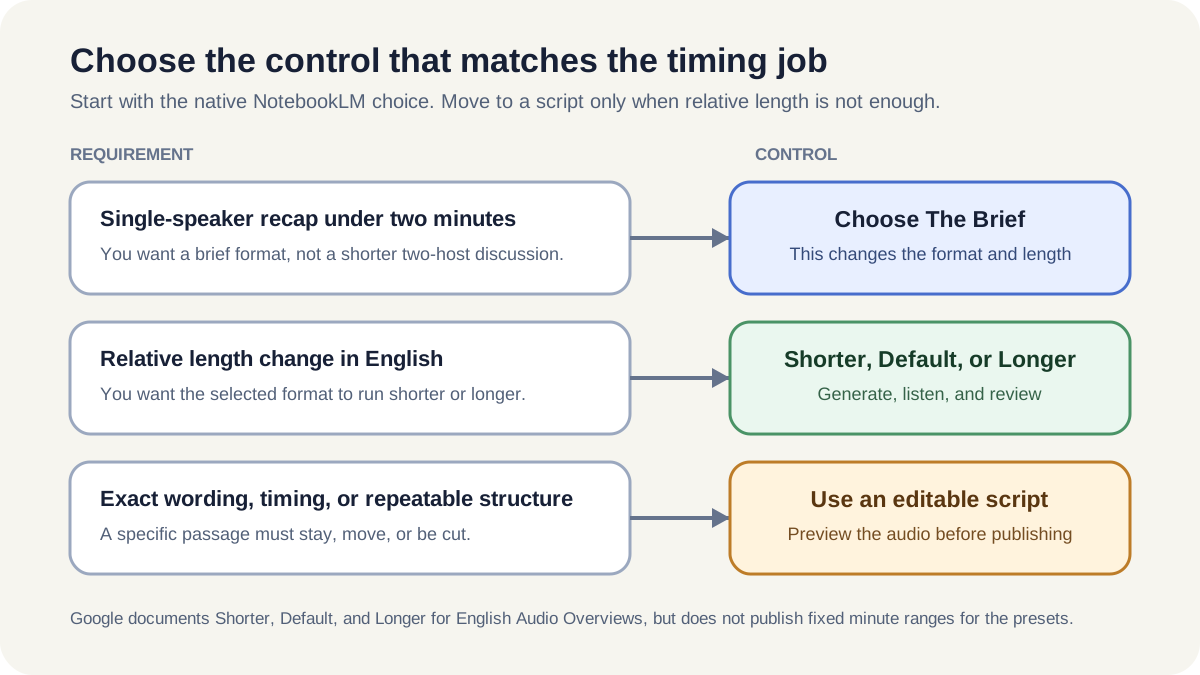
Use NotebookLM's presets for relative changes and an editable script when the runtime has to fit a slot.
I have not published a measured before-and-after run here, because runtimes depend on the source material and the script you end up with. Generate once at your target, read the script, then trim.
Can you change the length of an Audio Overview you already made?
Not in place. In NotebookLM, length is chosen at generation, so you change the settings or sources and generate a new one. Keep the first version until you have checked that the new one still covers the details you need.
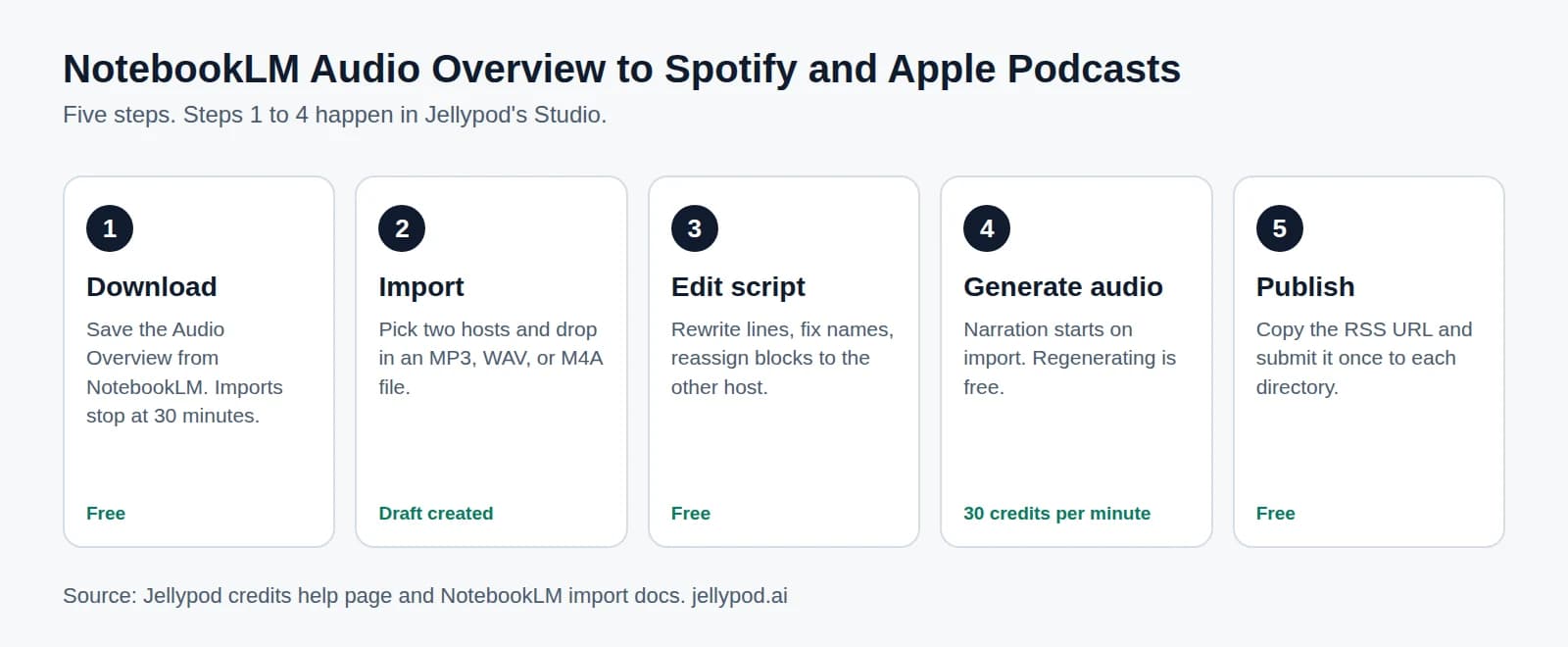
If the existing audio is close, import the NotebookLM file into Jellypod to turn it into an editable script. From there you can cut or expand exact passages, change the voices, and publish it as a podcast.
Which should you use?
Use NotebookLM's presets when a rough change is enough and the language is English. Use Jellypod when the length has to fit a course module, a training slot, or a recurring show. The current preset list lives in the episode length update, which describes the original short, medium, and long options. The minute-based presets above replace them.
Whichever tool you use, check the meaning before the minutes. Google warns that Audio Overviews may contain inaccuracies or audio glitches, and a shorter cut can drop a qualification. Do not trim exceptions or conditions from medical, legal, or policy material just to hit a number. Split it into separate episodes instead.
Set the runtime in an editable Jellypod scriptTry Jellypod