You cannot change the voices inside NotebookLM. Google's Audio Overview help page lists formats, languages, length, and a focus prompt, but no voice or host picker. The voices are the one part of the show you do not control.
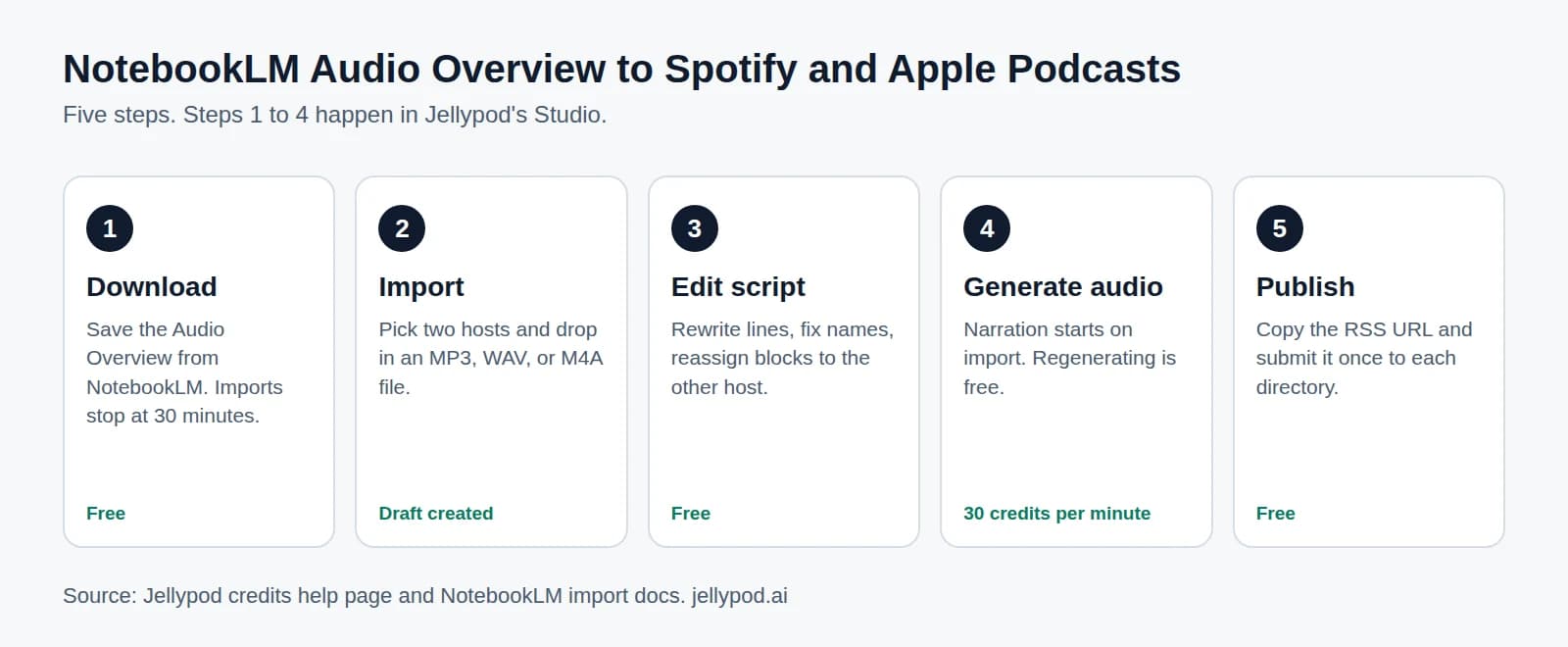
The workaround is to take the audio somewhere that does. Jellypod's NotebookLM import transcribes the Audio Overview, splits it into two speakers, and voices the script with two hosts you pick, whether that is a library voice in another accent or a clone of your own. Same conversation, different cast.
Key takeaways
- NotebookLM has no voice setting. Google's Audio Overview help page documents format, language, length, and prompt options, and nothing for choosing voices.
- Importing the audio into Jellypod transcribes it and maps each speaker onto one of two hosts you choose before the import starts.
- Each host can use any voice from the voice library (3,300+ voices, including British, Australian, and Indian accents) or a voice clone of you.
- Imports accept MP3, WAV, or M4A files up to 30 minutes, and the result is an editable draft, not a published episode.
- The new voices read the transcript, so the words stay the same unless you edit the script.
Can you change the voice in NotebookLM?
No. Google documents four Audio Overview formats (Deep Dive, Brief, Critique, and Debate), generation in 80+ languages, three length options, and a custom prompt for focus and expertise level. Voice and host selection are not on the list. Google renamed NotebookLM to Gemini Notebook on July 16, 2026, and the announcement does not mention any voice change.
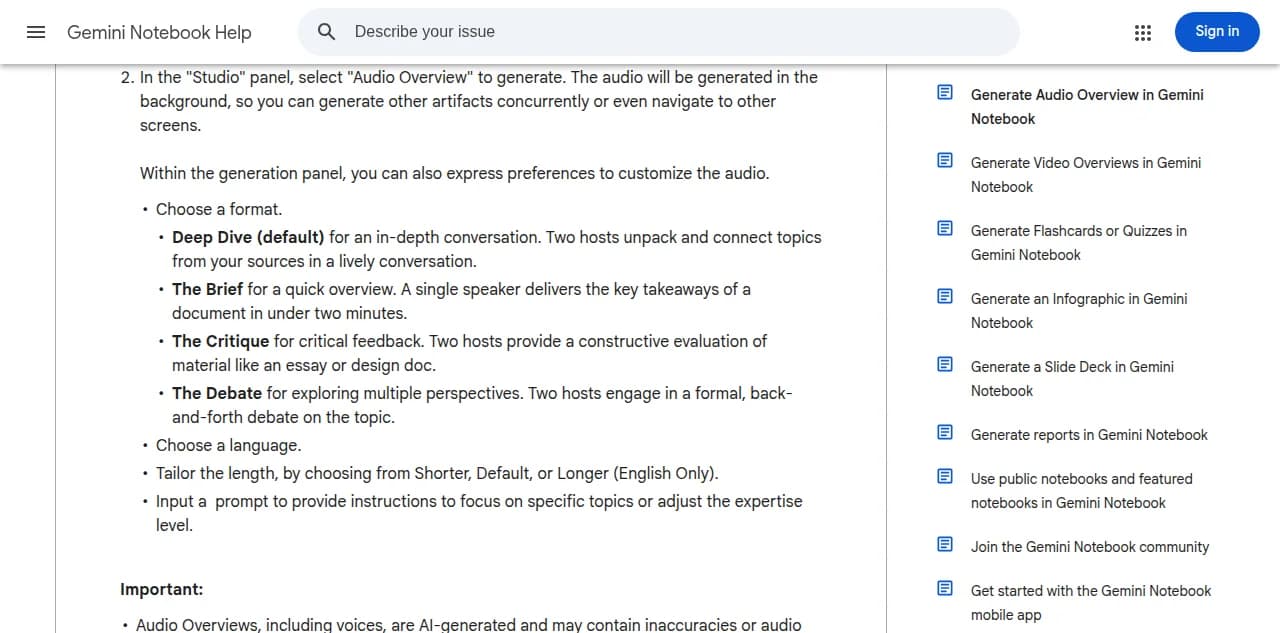 Google's help page lists format, language, length, and prompt. Voice is not an option.
You can influence what the hosts say. You cannot influence who they sound like. If you also want a longer or shorter file, that is a separate setting, covered in how to change the length of a NotebookLM podcast.
How do you swap the voices in a NotebookLM podcast?
You rebuild the episode around hosts you choose. The order matters: you pick the voices first, then import, because the import maps speakers onto hosts you have already set up.
- Set up two hostsIn Jellypod, a host is a character with a name, a personality, and a voice. Pick two from the voice library, or create one with a voice clone. They must be two different characters.
- Download the Audio OverviewSave the file from NotebookLM. MP3, WAV, and M4A work, up to 30 minutes and 250 MB.
- Import itOpen a podcast, choose Import from NotebookLM under Create New Episode, select your two hosts, and drop in the file.
- Check the speaker mappingJellypod transcribes the audio and assigns each detected speaker to one of your hosts in the order they first appear. The first voice you hear becomes your first host, the second becomes your second.
- Edit and regenerateYou land in the script editor on a draft. Jellypod starts generating audio in the new voices right away. Reassign any speech block to the other host, rewrite lines, and regenerate only what you changed.
Nothing publishes until you say so. When you are ready to put it on Spotify or Apple Podcasts, follow how to publish a NotebookLM podcast. The import help doc has the full walkthrough.
Two limits to know before you start. Imports use exactly two hosts, so a file with a third voice folds the extra speaker back onto your two hosts, and you can fix those blocks in the editor. And the new audio is a fresh performance of the transcript, so pacing and emphasis will differ from the original. Non-speech sounds like laughter are dropped on import.
Can you give NotebookLM hosts a British or other accent?
Yes, by choosing hosts whose voices have that accent. Jellypod has dedicated pages where you can hear samples before you commit: British, Australian, Irish, Indian, Scottish, and more.
Because each host has its own voice, the two hosts do not need to match. A British host and an American host in one conversation gives listeners an easy way to tell speakers apart, which is the same idea behind any multi-host AI podcast. If the result sounds too flat, how to make an AI voice sound human covers script and delivery fixes.
Can you make a NotebookLM podcast in another language and voice?
Partly in NotebookLM, and the rest depends on the voice. Google says Audio Overviews can be generated in 80+ languages, so generate the overview in the language you want first. The import transcribes what was spoken and keeps that language.
Then choose hosts whose voices speak that language. The library labels each voice by language and accent, so you can filter for the one you need.
Can you use your own voice in a NotebookLM podcast?
Yes, with a voice clone. Clone your voice from at least 30 seconds of audio (60 seconds is recommended, up to 10 samples), confirm you have the rights to it, and save it as a character. Then choose that character as one of the two hosts when you import.
You can clone yourself as one host and keep a library voice as the co-host, or clone two people. The number of clones depends on your plan: Starter includes 2, Creator 8, and Business 20. Only clone voices you have permission to use, which AI voice cloning consent explains in more detail. See the voice cloning feature page for the steps.
Frequently asked questions
Can I change the voice on an Audio Overview I already made?
Yes. Download the file and import it. You do not need to regenerate anything in NotebookLM, and the original stays in your notebook.
Does changing the voice change the content?
No. The import produces an editable script of the same conversation, and the new voices read it. The words only change if you edit them.
Does it cost anything?
Jellypod offers a 7-day free trial you can cancel anytime. Editing, publishing, and downloading require a trial or plan but use no credits, and credits are charged when audio is generated. Because the import starts audio generation right away, it uses credits. If you have too few, the script is still saved and you can generate audio later from the editor.
Can the audio come from something other than NotebookLM?
Yes. Any MP3, WAV, or M4A file up to 30 minutes works, and the import does not check where it came from.