NotebookLM cannot publish a podcast. It makes an Audio Overview you can download or share by link, but it has no RSS feed, and Spotify and Apple Podcasts list shows only through RSS. Here is the five-step route.
Import the audio into Jellypod, which transcribes it and maps the two speakers onto hosts you pick. Edit the script, generate the audio in your hosts' voices, and publish to an RSS feed you submit once to each directory. The import takes MP3, WAV, or M4A files up to 30 minutes.
Key takeaways
- NotebookLM has no RSS feed, so an Audio Overview cannot go to Spotify or Apple Podcasts on its own. Google's help page covers downloading and sharing only.
- Jellypod imports the audio, splits the speakers onto two hosts you choose, and gives you an editable script.
- Import starts narration right away at 30 credits per minute, so a 10-minute overview costs 300 credits. Editing and publishing cost nothing.
- Publishing creates an RSS feed. You submit it once to Spotify and to Apple Podcasts, and later episodes appear on their own.
- No Audio Overview yet? Start from the same sources in Jellypod instead.
Can you publish a NotebookLM podcast to Spotify or Apple Podcasts?
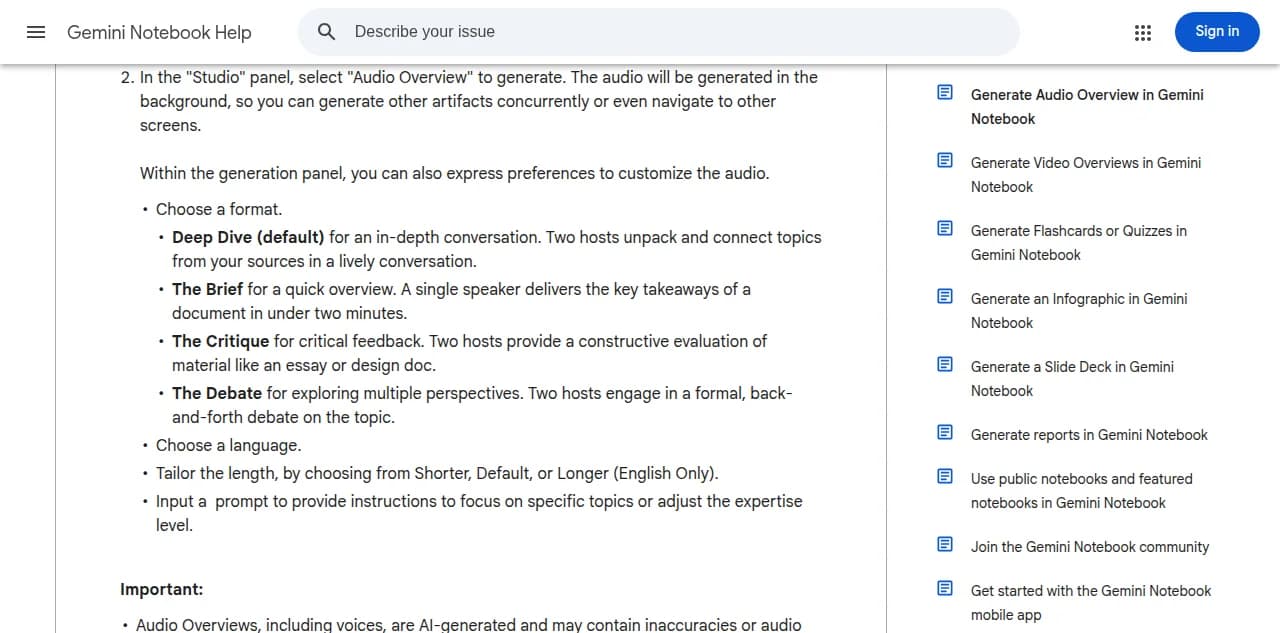
Not directly. Google's Audio Overview help page describes three ways to share one: a link, sharing the whole notebook, or downloading the file. It mentions no feed and no publishing option.
Spotify and Apple Podcasts read a show from an RSS feed URL. To get on both, you need a host that generates that feed, which is the gap the steps below fill. If you are unsure which tool fits your goal, see the NotebookLM alternatives comparison.
How do you turn a NotebookLM Audio Overview into a podcast?
The path has five steps. Steps 1 to 4 happen inside Jellypod's Studio.
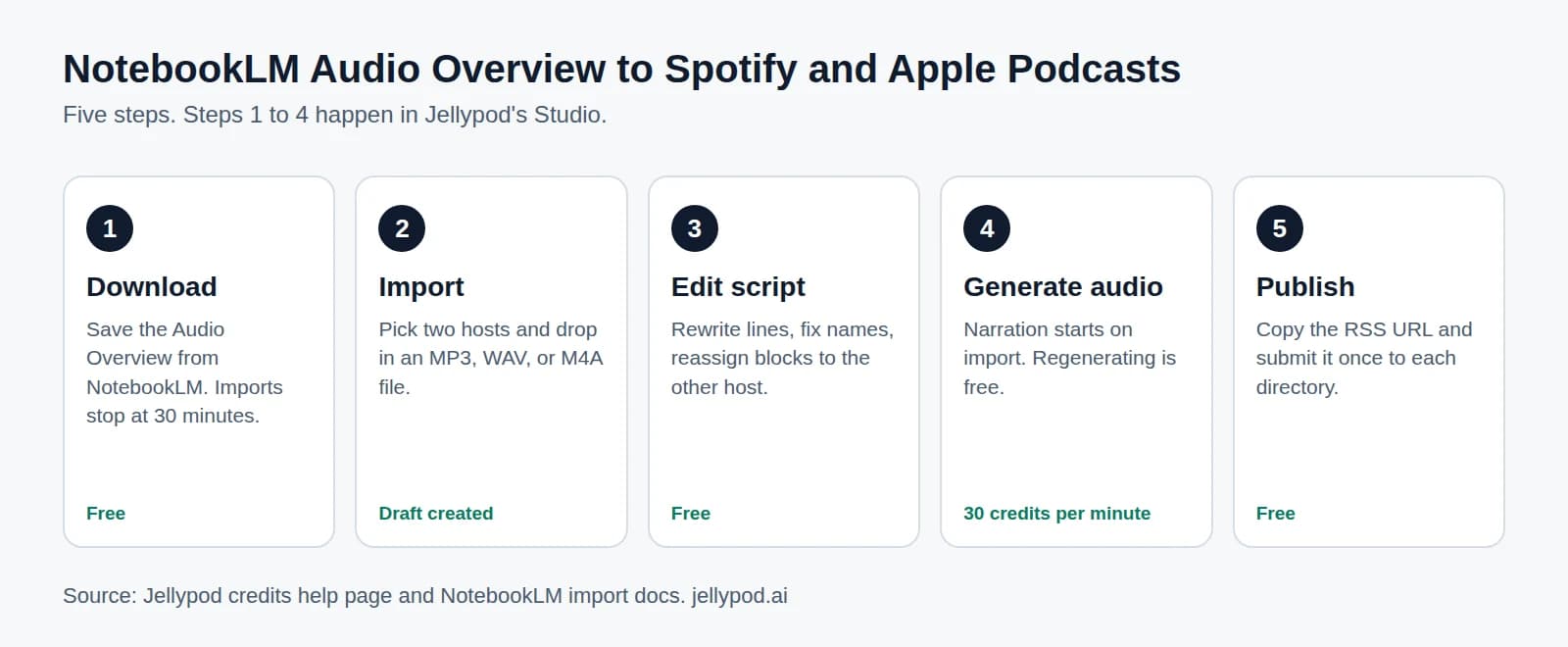
- Download the Audio Overview. In NotebookLM, select Download on the Audio Overview. If it is longer than 30 minutes, generate a shorter one first, since imports stop at 30 minutes. See how to change the length.
- Import it. Open your podcast, choose Import from NotebookLM in the Create New Episode section, pick a first and second host, and drop in the file. Jellypod transcribes the audio and separates the speakers. The import help doc has the full walkthrough.
- Edit the script. You land in the script editor with a draft episode. Rewrite lines, fix names, reassign a block to the other host, or regenerate a single segment.
- Generate the audio. Narration starts on import, so the first pass is already voicing your script. After you edit, regenerate the changed segments.
- Publish and submit the feed. Publish the episode, copy the RSS URL from your podcast page, and submit it once to Spotify for Creators and Apple Podcasts for Creators. Jellypod's guides for Spotify and Apple Podcasts list each click.
Nothing goes live until you publish. Import creates a draft, and no new hosts are created along the way.
What does it cost in credits?
Narration costs 30 credits per minute of audio. Jellypod's credits help page also says regenerating narration is free once an episode has audio, and that publishing, scheduling, and downloading never use credits.
| Audio Overview length | Credits on import |
|---|---|
| 5 minutes | 150 |
| 10 minutes | 300 |
| 30 minutes (import limit) | 900 |
The Starter plan includes 5,000 credits a month, so a 10-minute import uses 6% of one month's allowance. Jellypod offers a 7-day free trial you can cancel anytime. If you run out of credits mid-import, the script is still saved and you can generate the audio from the editor later.
What changes when a NotebookLM script becomes your episode?
A NotebookLM Audio Overview comes with two preset voices and no script to open. After import, the same conversation is text you own. You choose the two hosts from the voice library or use a clone of your own voice, and the show keeps them across episodes. For a walkthrough of voice options, see how to change the NotebookLM podcast voice.
Two limits to plan around. Imports use exactly two hosts, so if the audio has more than two voices, extra speakers cycle back onto your two hosts and you reassign blocks by hand. And sounds like sighs or laughter in the source are dropped on import. Add audio tags in the editor if you want them back.
Do you need an Audio Overview first?
No. The Audio Overview is one way in. If you would rather skip NotebookLM, add the same PDFs, docs, and links as sources in the AI podcast generator, pick your hosts, and edit the script before any audio exists. Starting from sources gives you control of the outline. Importing keeps a conversation you already like.
What do Spotify and Apple Podcasts need before they accept the feed?
Both need a published episode in the feed. Apple also needs square cover art between 1400x1400 and 3000x3000 pixels, per Jellypod's Apple Podcasts guide, and the podcast cover art guide covers the specs. Apple requires disclosure of AI-generated content in each show and episode, and you are responsible for adding it.
Every Public or Unlisted Jellypod podcast gets an RSS feed automatically. A Private podcast has none. Approval by Apple can take a few hours.
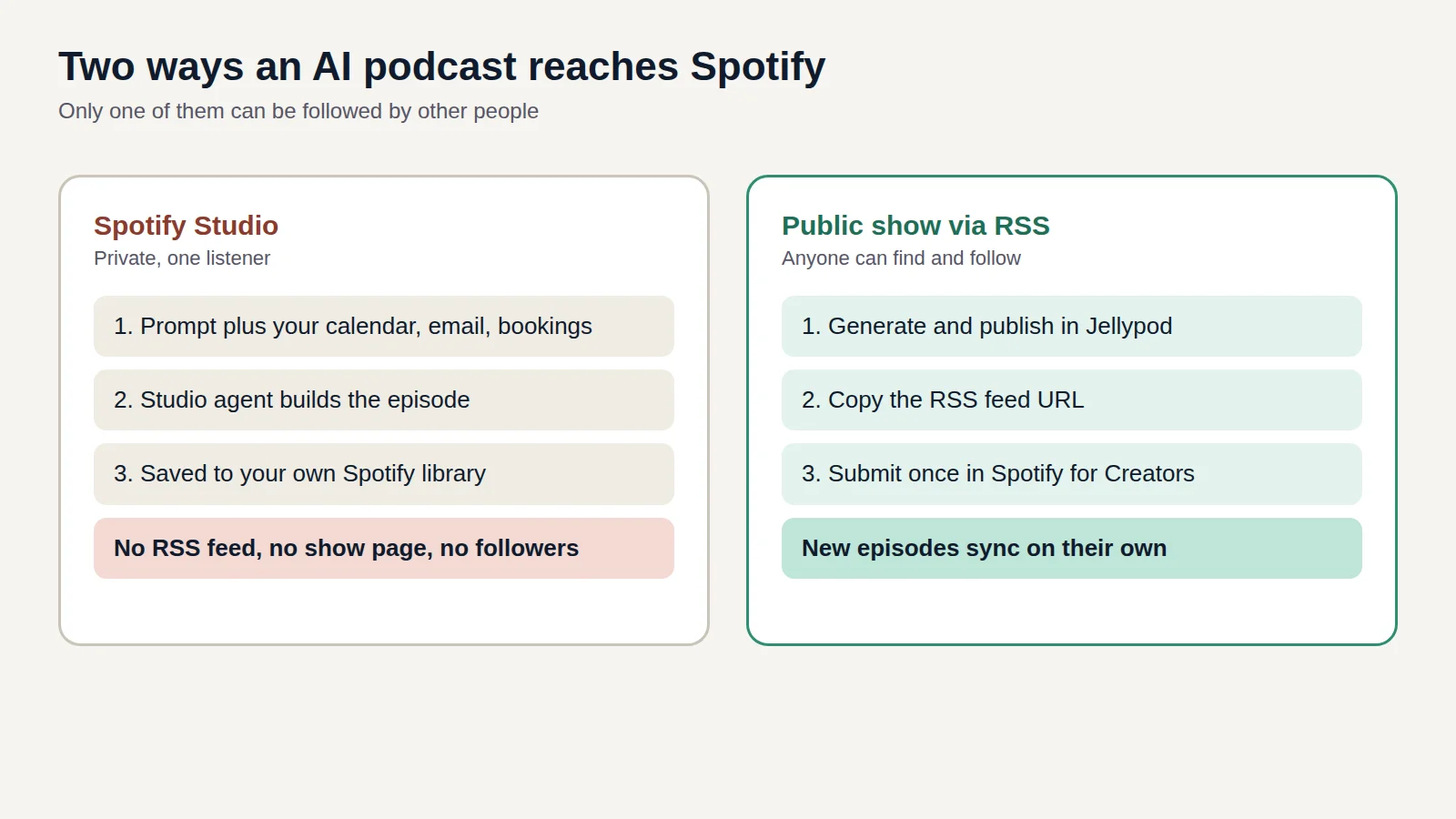
One easy mix-up: Spotify Studio, Spotify's own AI podcast app, makes private episodes for you and does not publish a public show. See what Spotify Studio is for how it differs from submitting an RSS feed.
Frequently asked questions
Does importing publish the episode?
No. Import creates a draft with an editable script and starts narration. Nothing is published until you publish it.
Can I import audio that did not come from NotebookLM?
Yes. Any MP3, WAV, or M4A file up to 30 minutes works.
Do I pay credits again after I edit the script?
No. Regenerating narration is free once the episode has audio.