
Upload a PDF to Gemini Notebook, click Video Overview, and a few minutes later you have a narrated video that looks like a small studio made it. That is the whole pitch, and it mostly delivers. The catch shows up the moment you want to change a line of narration, put your own voice on it, or publish it somewhere other than the notebook you made it in.
A Video Overview is Gemini Notebook's auto-generated video built from whatever sources you upload: PDFs, slides, web pages, or Docs. You pick a format (Cinematic, Explainer, or the 60-second Short) and a visual style, and the tool writes a script grounded in your material, generates the visuals, and renders the whole thing as one file. It is genuinely useful for a fast, one-off summary. It is not a production tool: there is no script editor, no voice selection, and no way to publish the result to a podcast feed or a channel you control. About half of the episodes rendered on Jellypod today come out as video for exactly that reason: teams that need to reuse and distribute this kind of content need more than a single generated file.
What is a NotebookLM Video Overview?
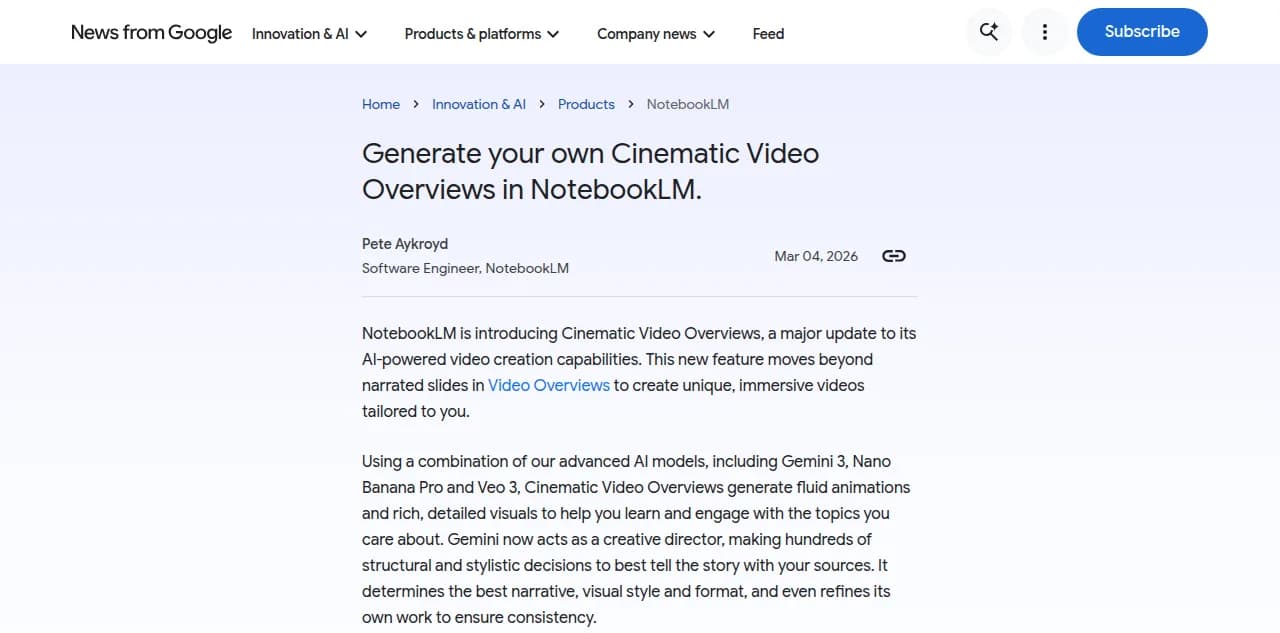
A Video Overview is a video Gemini Notebook builds automatically from the sources already in your notebook, the same grounding that makes its Audio Overviews credible. Google's own description of the process: "Gemini now acts as a creative director, making hundreds of structural and stylistic decisions to best tell the story with your sources," while Nano Banana Pro and Veo 3 generate the visuals and animate them.
You choose one of three formats. Cinematic is "a rich, immersive experience" with fluid animation. Explainer is a more structured, slide-driven walkthrough. Short compresses one idea into a roughly 60-second vertical clip, English only. Layered on top are eight visual styles, Classic, Whiteboard, Watercolor, Retro Print, Heritage, Paper-craft, Kawaii, and Anime, or a custom text description if none of the presets fit.
How do you make a Video Overview in Gemini Notebook?
The workflow is short by design. Open a notebook that already has sources in it, open the Studio panel, and select Video Overview.
- Pick a format. Cinematic, Explainer, or Short.
- Choose a visual style. One of the eight presets, or describe your own look in a text prompt.
- Add an optional steering prompt. A short instruction to focus the video on a specific angle or subtopic.
- Generate and wait. Google's own help documentation notes generation "sometimes taking over 30 minutes" before the video is ready.
- Download or share. The finished file downloads as an MP4, or you can share it as a link or through the full notebook.
There is no step in between generation and output where you touch the script. What you get is what the model decided to make.
Can you edit or customize a Video Overview?
Only at the level of instructions, not the level of content. You can rerun generation with a different steering prompt, a different visual style, or a different format, and the model will produce a new video from scratch. What you cannot do is open a line of narration and rewrite it, swap the narrator's voice for your own, or trim a scene without regenerating the whole thing. If a fact in your source document is wrong, or the model draws a conclusion you did not intend, your only lever is a prompt nudge and a full re-render, not a fix.
That is a reasonable trade-off for a five-minute research summary. It becomes a real constraint the moment the video needs to be accurate on the second viewing, not just the first, which is exactly the bar a training module or a graded lecture has to clear.
How long is a Video Overview, and where can it go?
Cinematic and Explainer overviews typically run a few minutes; Google does not publish a hard cap, but the format is built around one notebook's worth of material, not an hour-long session. The Short format is fixed at about 60 seconds. Whatever the length, the output is a single downloadable MP4 with no built-in captions requirement, no RSS feed, and no publishing path to Spotify, Apple Podcasts, or YouTube. You watch it, download it, or send someone the link. There is nowhere for a second one to go that a first one did not already go, which is fine for a one-off explainer and awkward for a series.
How has the Video Overview feature changed over time?
The feature has shipped in four visible stages since it launched, each one adding capability without changing the core limitation: one file per generation, downloaded or watched, never distributed.
| Date | What shipped |
|---|---|
| May 2025 | Video Overviews launch: narrated-slide videos built from your sources |
| Fall 2025 | Visuals upgraded with Nano Banana image generation |
| March 4, 2026 | Cinematic Video Overviews add fluid animation via Gemini 3, Nano Banana Pro, and Veo 3 |
| June 30, 2026 | Short Video Overviews add a 60-second vertical format |
| July 16, 2026 | NotebookLM renamed to Gemini Notebook |
Each release made the single video better. None of them added a script editor, a voice you control, or a feed.
NotebookLM Video Overview vs. a real explainer video
This is where the two tools stop doing the same job. A Video Overview is built to answer one question about one document, once. Magic Video is built to produce a video you can edit, brand, and publish on a schedule.
| Gemini Notebook Video Overview | Jellypod Magic Video | |
|---|---|---|
| Formats | Cinematic, Explainer, 60-second Short | One workflow, plan-based length |
| Visual styles | 8 presets or a custom description | Named styles including Whiteboard Explainer, Claymation, and Toy Bricks |
| Max length | A few minutes; 60 seconds for Short | Up to 25 minutes on Business, shorter on lower plans |
| Script control | Steering prompt only, no line editing | Full script editor before anything renders |
| Narration | Fixed AI narrator | Your own cloned voice or a custom AI host |
| Captions | Not a stated feature | Word-synced captions on every render |
| Output | MP4 download or notebook share link | MP4 you own outright, ready to upload anywhere |
| Distribution | None | RSS feed, one-click to Spotify, Apple Podcasts, YouTube |
| Generation time | Can exceed 30 minutes | Minutes, live in the editor |
If you only need one video to understand one document, the Video Overview wins on speed and cost. If the video is going to be watched more than once, corrected, rebranded, or turned into a recurring series, the gap in the table above is the whole reason to reach for a different tool.

You can compare the two approaches without signing up for either. The free whiteboard explainer video maker takes a topic and returns a narrated 30-second explainer, the same starting point a Video Overview gives you, except the script behind it is yours to edit.
A real example: turning a one-off summary into a library
Steve DeNunzio, an MBA professor at The Ohio State University, put the underlying problem well: "It's not about replacing lectures. It's about reinforcing the arc of learning in the moments students actually have." A single AI-generated video summary can help a student cram before an exam. It cannot become the thing a program hands every incoming cohort, updates every semester, and tracks completion on, because there is no script to correct and no feed to publish it through.
That is the gap learning and development teams run into first. A single training module gets recorded, a policy changes six weeks later, and the fastest fix is not re-uploading a new PDF and hoping the next auto-generated video matches, it is opening the script, changing the one paragraph that is now wrong, and re-rendering.
Frequently asked questions
How long does a NotebookLM Video Overview take to generate?
Google's own documentation notes it "sometimes tak[es] over 30 minutes," and generation happens in the background while you keep working in the notebook. There is no way to speed it up beyond choosing the shorter Short format.
Can you edit the script of a Video Overview after it generates?
No. You can add a steering prompt and regenerate, or change the visual style and regenerate, but there is no interface for editing narration line by line. Every change means a new full render.
Is Gemini Notebook's Video Overview free?
Availability has tracked NotebookLM's broader tiers rather than a separate paywall; see what NotebookLM's paid tiers cost for the current breakdown, since pricing pages change faster than feature docs.
Can you publish a NotebookLM Video Overview to YouTube or a podcast feed?
Not directly. You can download the MP4 or share a link to the notebook, but there is no RSS feed and no built-in publishing to Spotify, Apple Podcasts, or YouTube. Getting a video onto those platforms means downloading it and uploading it elsewhere yourself.
What is the difference between a Video Overview and a Short Video Overview?
A standard Video Overview (Cinematic or Explainer) runs a few minutes in landscape. A Short Video Overview is a roughly 60-second vertical clip meant for a phone screen, built for a quick take rather than a full explanation.
The short version
Gemini Notebook's Video Overview turns your sources into a narrated video in one click, and for a quick, one-time summary that is genuinely hard to beat. The moment you need to fix a line, use your own voice, or publish the result somewhere your audience already subscribes, you have hit the format's ceiling. Jellypod starts from the same kind of source material and carries it all the way to an editable, hosted show with a real feed behind it.
Watch Jellypod’s whiteboard explainer examples to compare Whiteboard, Chalkboard, Crayon, and Blueprint before making your own.