
NotebookLM can turn a set of sources into a podcast-style Audio Overview without recording. Open or create a notebook, add your documents or links, select Audio Overview in the Studio panel, choose a format and language, then pick Shorter, Default, or Longer for an English overview before generating the audio.
That native workflow is enough when you need a source-grounded briefing to listen to or share as a file. If the audio needs an editable script, chosen voices, hosting, an RSS feed, or repeatable episode production, Jellypod handles that later production step. You do not need Jellypod to make the Audio Overview itself. Google's current NotebookLM Audio Overview help documents four formats, language selection, English length controls, custom focus instructions, downloads, and sharing.
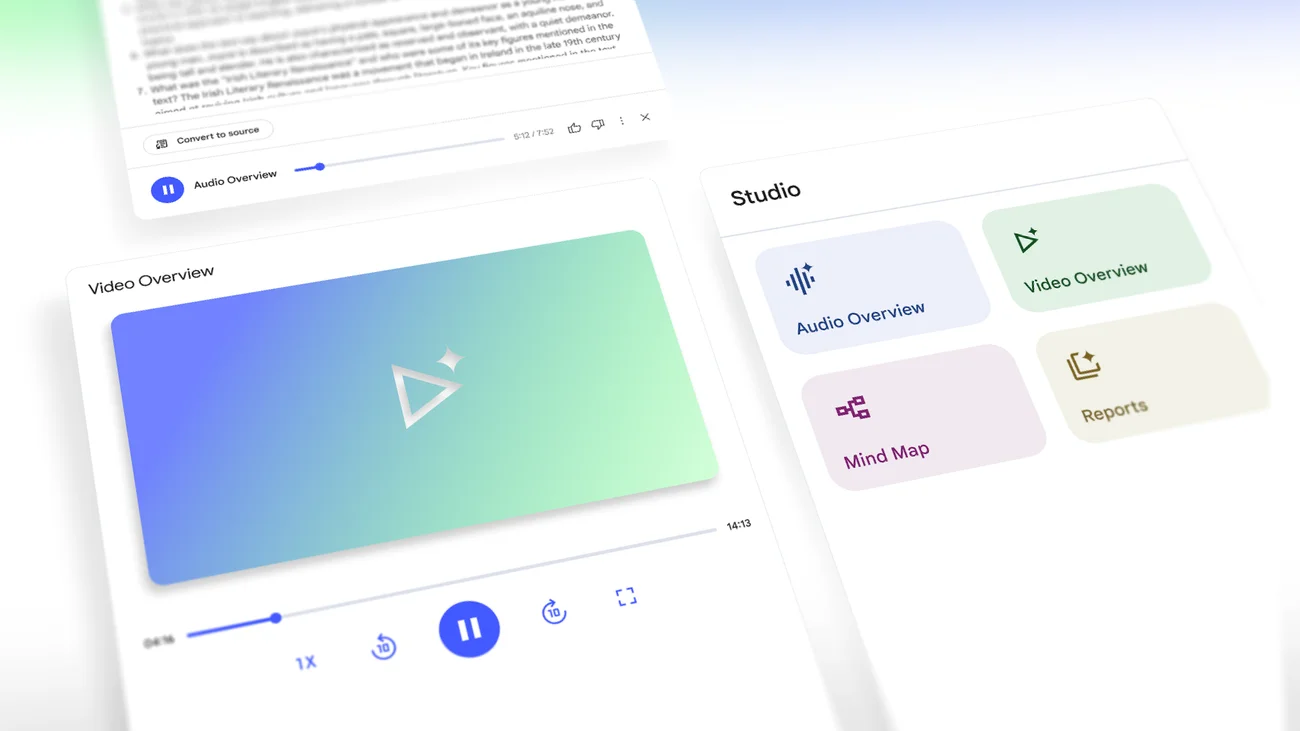
Audio Overview lives in NotebookLM's Studio panel after you add sources to a notebook.
Google renamed NotebookLM to Gemini Notebook on July 16, 2026. It is the same standalone product, and existing notebooks carry over. This guide keeps NotebookLM in the title so the established search query and URL remain recognizable.
How do you create an Audio Overview in NotebookLM?
You need a Google account, a notebook, at least one source, and edit access to that notebook. Google's official generation steps are short:
- Open an existing notebook or create a new one.
- Upload or import the sources the audio should cover.
- In the Studio panel, select Audio Overview.
- Choose the format, language, and length. You can also enter instructions that tell the hosts which topics to focus on or what expertise level to assume.
- Generate the overview. NotebookLM creates it in the background, so you can keep working elsewhere in the notebook.
- Listen before sharing. Google warns that generated voices may contain inaccuracies or audio glitches.
The source list matters more than a clever prompt. Select only the documents that belong in the episode, remove stale versions, and give contradictory material a quick editorial pass before generation. NotebookLM builds the overview from the sources you have selected, so a cleaner source set gives the hosts a clearer job.
Which Audio Overview format should you choose?
Choose the format by the job the listener needs to do. The options are not four names for the same two-host summary. They change the number of speakers and the purpose of the audio.
| NotebookLM format | What Google says it produces | A practical use |
|---|---|---|
| Deep Dive | A detailed conversation in which two hosts connect topics from the sources | Review a reading packet or explain how several documents relate |
| The Brief | A single-speaker overview of key takeaways in under two minutes | Give a team or class a quick orientation before the source material |
| The Critique | Constructive feedback from two hosts | Review an essay, proposal, or design document |
| The Debate | A formal discussion between two hosts with different perspectives | Surface competing arguments in a policy or strategy packet |
These descriptions come from Google's Audio Overview documentation. Deep Dive is the default, but default does not mean best for every source. A short policy memo may be clearer as The Brief. A proposal that needs review may fit The Critique better than a friendly summary.
What sources can you use to make the audio?
NotebookLM accepts the common formats used by educators, researchers, and teams. Google's source documentation lists PDFs, Word files, text and Markdown files, PowerPoint, CSV, ePub, Google Docs, Slides, and Sheets, copied text, images, web URLs, audio files, and public YouTube videos with captions.
An imported source is the material NotebookLM uses to answer questions and create artifacts. A few source rules matter:
- A web URL contributes the page text, not every embedded video or linked page.
- A public YouTube URL contributes its transcript, and the video needs captions.
- An imported audio file is transcribed so its text can become a source.
- You should only upload or share material you have the right to use.
For a course recap, that might mean the lecture slides, assigned article, and your own notes. For an internal training brief, it might mean the approved playbook and the latest policy document. Avoid mixing drafts and final versions unless comparing them is the point of the audio.
Can you control what the NotebookLM podcast covers?
Yes. Before generation, you can select the sources, choose a format, set a language, pick a length, and add a prompt that focuses the overview on specific topics or changes the assumed expertise level. Those controls are all listed in Google's generation panel instructions.
Write the focus instruction like an editor's note. Name the listener, the question they need answered, and material that deserves attention. For example:
Explain the revised attendance policy to department chairs. Focus on what changed, who approves exceptions, and the dates in the implementation section. Define acronyms the first time they appear.
That instruction is more useful than asking for an "engaging podcast." It gives the audio a listener, a scope, and a review checklist. After generation, compare the audio against those three items. If one is missing, revise the selected sources or instructions and generate another version.
How should you check an Audio Overview before sharing it?
Listen with the source material open. Google states that Audio Overviews are AI-generated and may contain inaccuracies or audio glitches, even though they are designed to reflect the uploaded sources rather than offer the hosts' opinions.
A useful review pass checks four things:
- Names, dates, figures, and technical terms match the source.
- The hosts do not blur two documents that describe different versions of a policy or finding.
- The overview includes the focus requested in the generation prompt.
- The audio has no speaker switches or voice glitches that change the meaning.
For medical, legal, financial, or policy material, treat the overview as a listening aid, not the record itself. Google's NotebookLM overview tells users to consult a qualified professional for medical, legal, or financial advice. Link or attach the approved source alongside the audio so the listener can verify details.
How do you download or share a NotebookLM Audio Overview?
NotebookLM supports three paths: share a link to the Audio Overview, share the full notebook, or download the audio file and send it yourself. The sharing instructions also document an account restriction: public notebook sharing is available to consumer accounts, but it is disabled for Workspace Enterprise and Education accounts.
That distinction matters in schools and companies. A private notebook shared with named colleagues may fit an internal briefing. A downloaded file may be simpler for a learning management system. Neither choice automatically creates an ongoing podcast feed that listeners can follow in Spotify or Apple Podcasts.
When should a NotebookLM overview become a produced podcast?
Keep the work in NotebookLM when the output is a one-off source summary. Move to a production workflow when you need to revise exact lines, use approved voices, publish episodes on a schedule, or give listeners a feed they can follow.
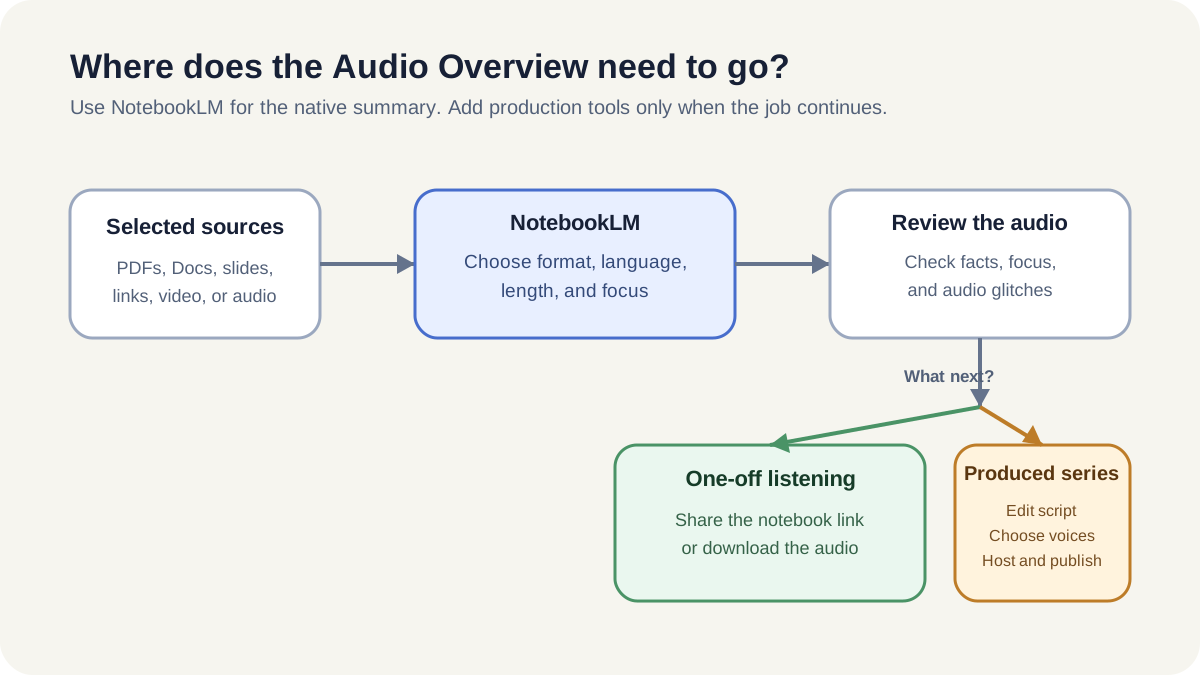
The native NotebookLM workflow is complete for a one-off summary. Production controls belong after that decision.
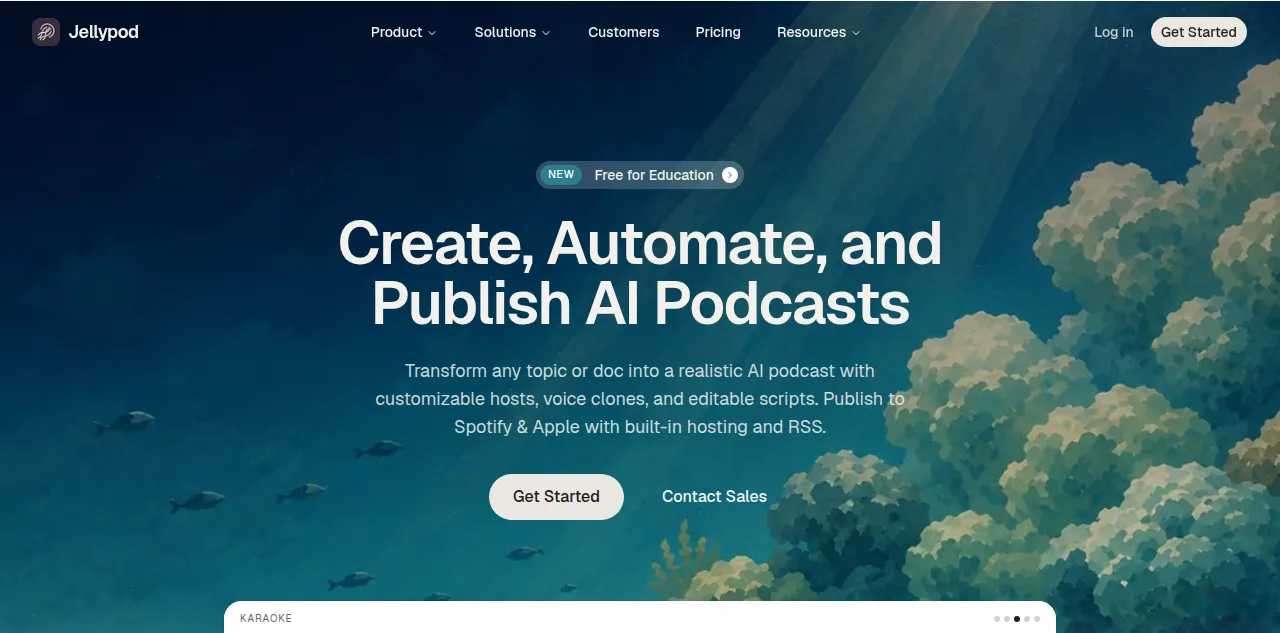
Jellypod starts where the one-off Audio Overview ends: script control, voices, hosting, and distribution.
The dividing line is ownership of the production process:
| Need | NotebookLM Audio Overview | Jellypod production workflow |
|---|---|---|
| Hear a source-based explanation | Generate it in the Studio panel | Not required |
| Change exact wording before audio is final | Generate a new overview with revised inputs | Edit the script directly |
| Choose recurring hosts or your own voice | Use NotebookLM's generated hosts | Choose voices or use voice cloning |
| Publish a series | Download or share each overview | Host the show and publish through an RSS feed |
| Repeat the format for new material | Reconfigure each generation | Reuse the show, hosts, and production workflow |
You can bring over the same sources and build a new episode, or import an existing NotebookLM Audio Overview when the generated conversation is already the right starting point. Jellypod is the production layer, not a requirement for NotebookLM's free native task.
Can you publish a NotebookLM Audio Overview as a podcast?
You can download the audio and use it wherever you have the necessary rights, but a podcast series also needs hosting and an RSS feed. Google's help documents file download and notebook sharing. It does not describe podcast hosting or directory submission in NotebookLM.
For a recurring course, internal learning series, or public show, use a podcast host that keeps the feed current as episodes are added. Jellypod combines the editable episode with hosting and distribution, so you can review the script, keep the same hosts, and publish future episodes through the same show.
The practical next step
Generate the first Audio Overview in NotebookLM and review it against the source. If the file already does the job, share it there. If it needs exact script edits, selected voices, hosting, or a repeatable publishing workflow, continue with the same material in Jellypod.