Turn a PDF into a video that keeps your pages
- PPTX
- PPT
- KEY
- ODP
Want to narrate a longer file? Voiceovers
4.6out of 5 on G2











Watch a report become a short video
Sample coming soon
Sample coming soon
A report or handout, as a short explainer
Upload a report, handbook, or handout, and a narrator walks through it in order, with your tables and layout still in the frame.
Last updated October 2026
Keep the PDF pages, or restyle them?
| Path | Product | When to use it |
|---|---|---|
| Keep my PDF pages as the video | Voiceover | Reports and handouts where the pages, tables, and layout should stay on screen. |
| Restyle the PDF as a whiteboard, Paper Mache, or chalkboard explainer | AI Video | The PDF is the source, and you want new illustrated scenes instead of the original pages. |
How to turn a report into a short explainer
Step 01
Upload the report
A quarterly report, a handbook, or a one-page handout.Step 02
Add the voice
Jellypod writes the narration and keeps those pages in the frame.Step 03
Download the explainer
Adjust a line or the timing, then download the MP4.

Uses your actual PDF pages
Your pages, charts, and layout stay in the video.

AI-written voiceover
Jellypod writes the narration from the page, including what sparse pages leave unsaid.

Automatic page timing
Each page stays up for its narration, from the first page to the last.
Who uses PDF to Video
Sales leave-behinds
A leave-behind prospects watch after the call.Handouts and course readings
A course reading or handout students can replay.SOP and onboarding training
An SOP or onboarding PDF employees finish on their own.
FAQ
Can I export this PDF training video to my LMS?
How is PDF to video different from PowerPoint to video?
Does it keep my charts and figures?
How long can the PDF be?
Can I edit the narration?
How is this different from NotebookLM video overviews?
Discover more
- Voiceovers
- SCORM export for your LMS
- AI video generator
- Paper Mache explainers
- Employee training videos
- Explainer video script
- Synthesia, Pictory, and InVideo alternatives
- NotebookLM Video Overviews and Shorts
- Compare: Jellypod vs NotebookLM
- Compare: Jellypod vs Knowlify
- Compare: Jellypod vs Vyond
- AI Shorts Generator
- Microdramas
- AI Voice Library
- Voice Cloning
- Built-in Hosting
- Free for Educators
Explore related tools
More from Jellypod
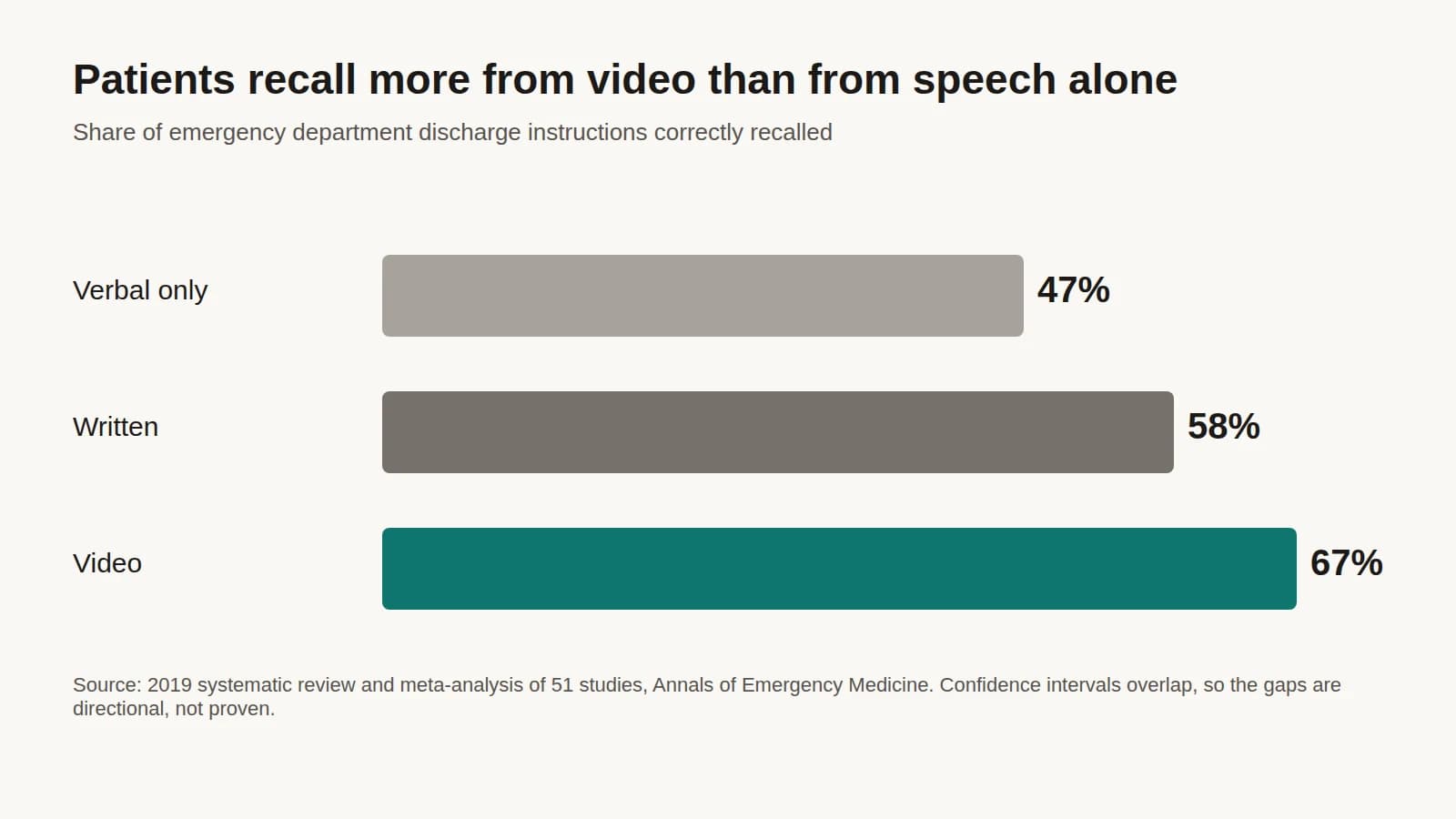
Patient Education Handouts: How to Make Them Work in Audio and Video
Keep the handout your clinicians already approved, then give patients an audio or video version they can replay at home in their own language.
Read more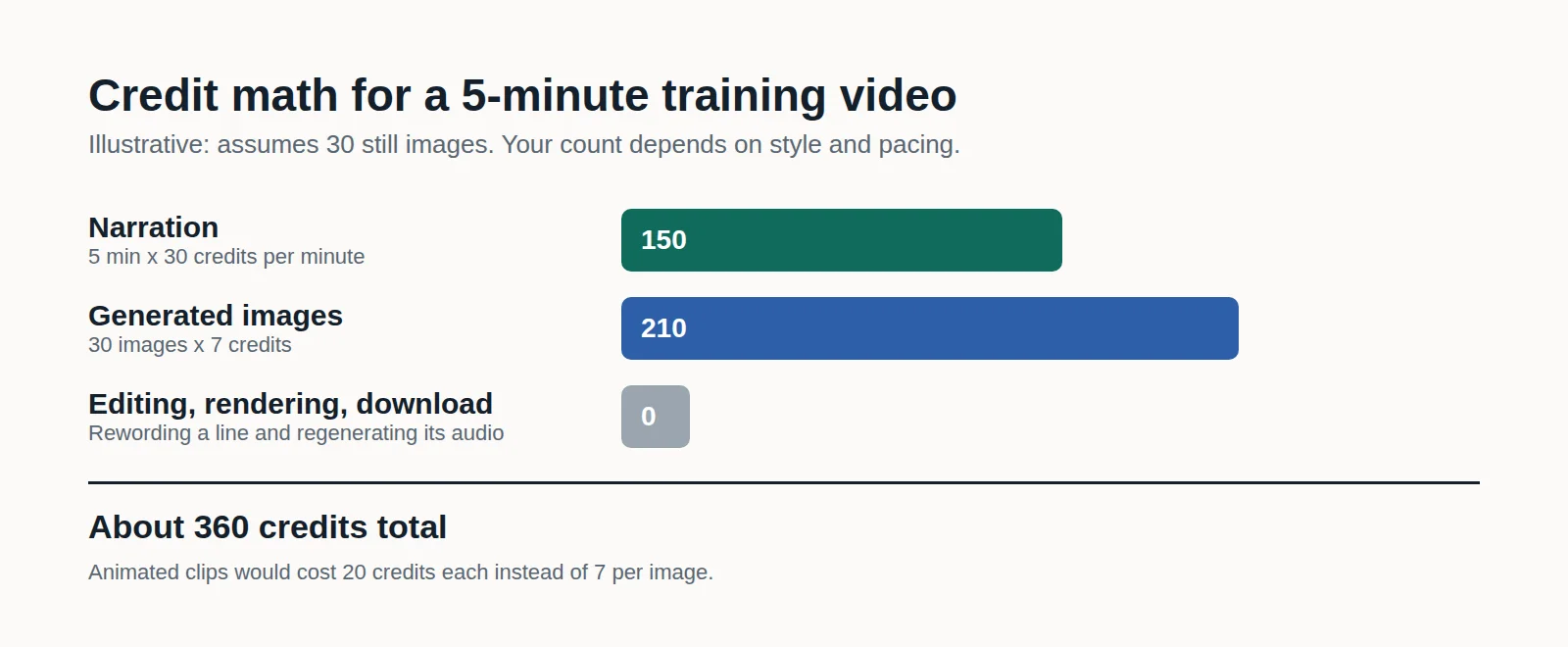
How to Make Employee Training Videos With AI (and What It Costs)
Turn an SOP, policy PDF, or slide deck into a narrated training video you can fix line by line when the process changes, and see the credit math before you generate.
Read more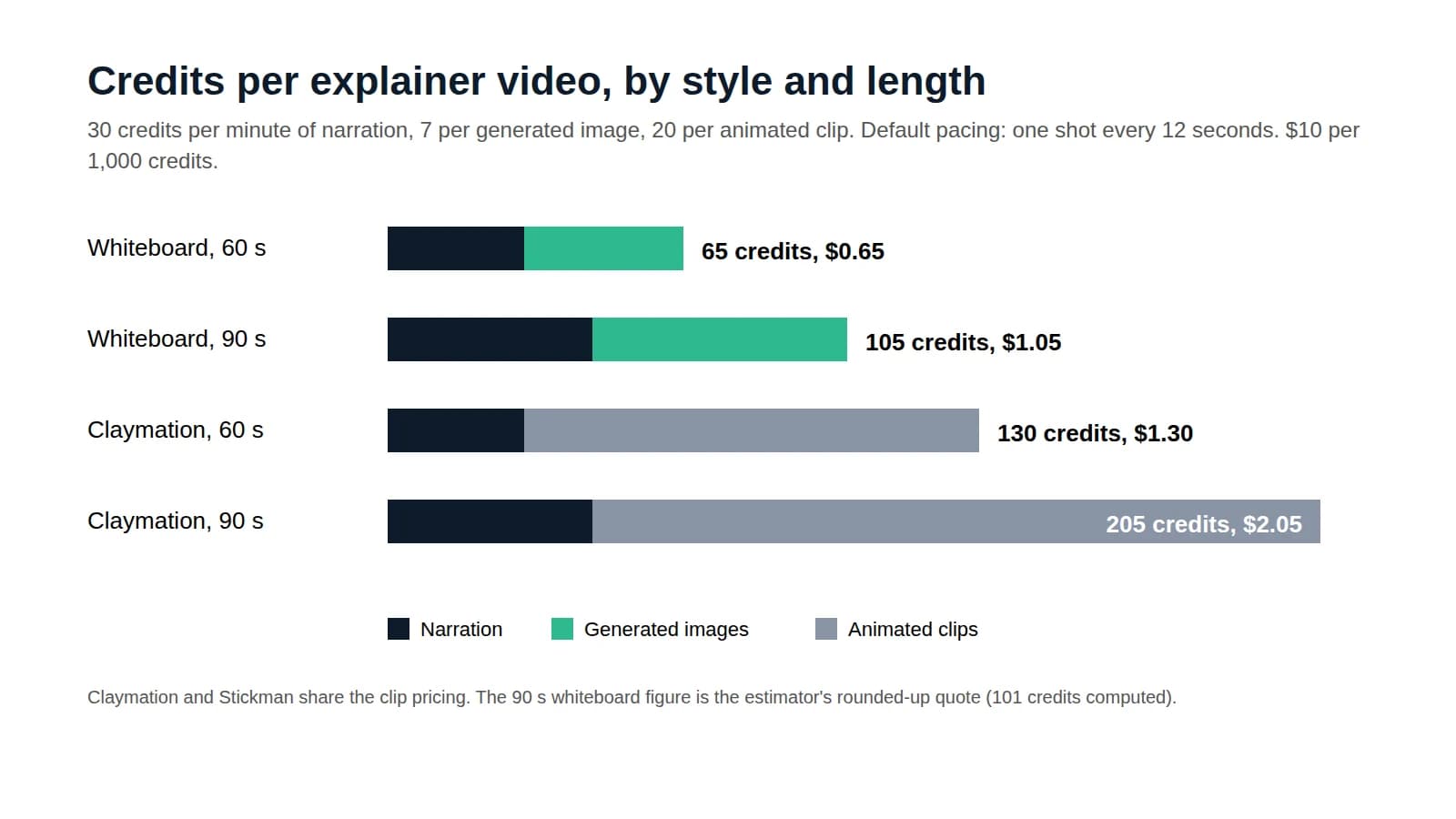
How Much Does an Explainer Video Cost?
Price a 60 to 90 second explainer by production method, then follow a credit-by-credit calculation for one made with AI.
Read more
Finish the full video in Jellypod
Start free with 500 credits. No credit card required. Paid plans include a 7-day free trial.

Your pages on screen, and a voice you can edit
Rewrite any line and change how long each page stays on screen, then download the MP4.