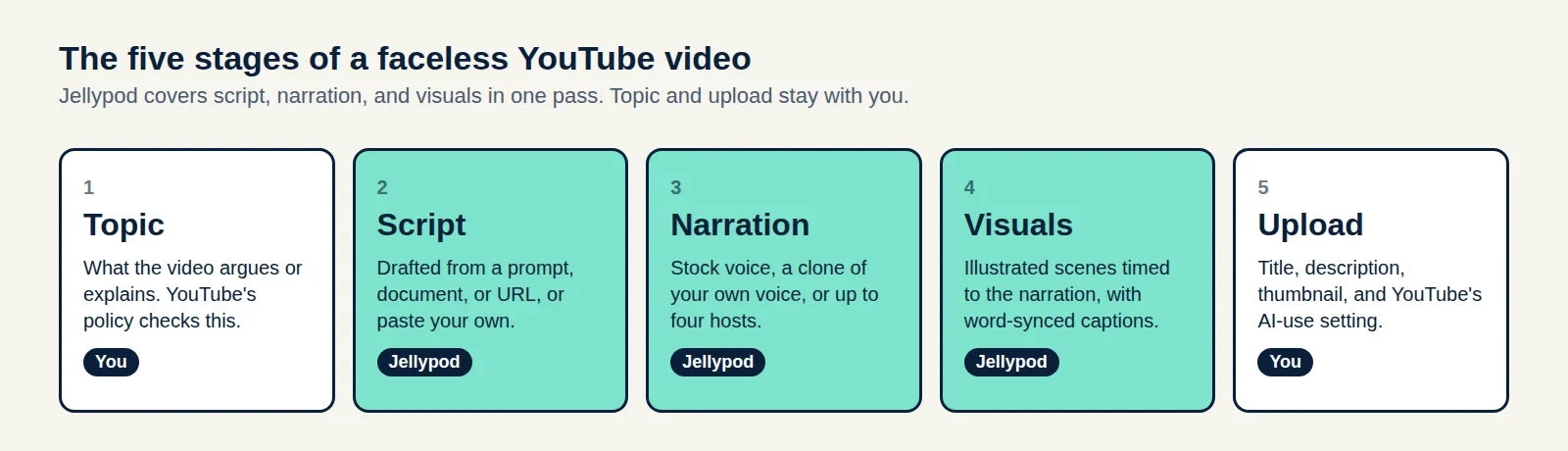
A recurring explainer can give your audience a regular refresher on a useful topic. Jellypod automations generate a horizontal video or vertical short on the days you choose and save the result privately in your video library.
Use this workflow for a recurring reminder or briefing. You still review each result and decide where to share it. Video and short automations do not publish automatically.
How do you schedule recurring video generation?
- Open Automations and click New Automation.
- Choose Video for a horizontal explainer or Short for a vertical result, then Continue.
- Choose Schedule, then Continue. Name the automation and enter a prompt that defines the audience, topic, and teaching goal.
- Choose the host and narration language. Set the available duration, orientation, visual style, and brand settings.
- Select the run days, time, and timezone. Check the upcoming-runs preview, then click Create Automation.
Start with a narrow subject, such as explaining how to recognize a suspicious login request. Review the first result before refining the prompt or style. The automation guide lists the current output settings; the visual style guide explains the available looks.
What does a reusable explainer prompt look like?
Give the automation a specific teaching goal and tell it which details it must leave to your organization.
Create an explainer for new employees about how to recognize a suspicious login request. Explain the warning signs in plain language, give one fictional example, and finish by reminding viewers to follow their organization's reporting procedure. Do not invent a company policy, reporting address, or tool name. Keep visuals focused on the concept being explained.
A fixed prompt can repeat a topic across runs. For a series with a defined sequence, update the prompt for the next topic. Do not assume the automation remembers previous videos or moves through a curriculum on its own.
If you have new source material for each video, choose Inbound Email when creating the automation and send that material to its private address. Each email triggers a separate run. That is a different setup from the repeating schedule above.
Where does each automated video go?
Each run saves a private result in the video library, and Jellypod emails you when it is ready. Review the narration, captions, and visuals before downloading or sharing it. There is no Auto-Publish setting for videos or shorts.
To build a public channel around the finished videos, the faceless YouTube channel guide covers topic selection, production, and manual upload.