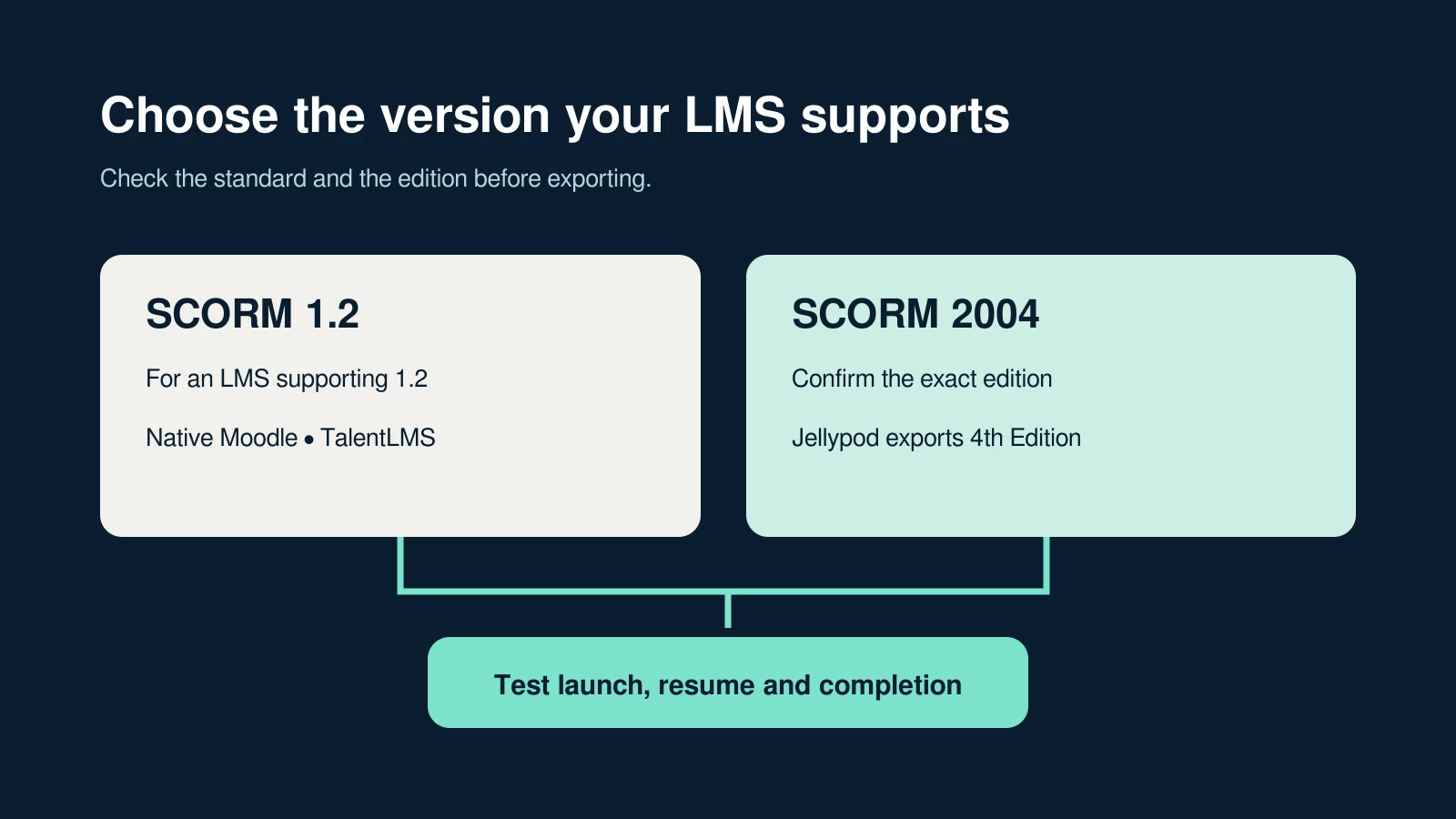
Choose SCORM 1.2 when your LMS supports 1.2, and SCORM 2004 only when it supports the edition your authoring tool exports. For a narrated audio or video lesson, compatibility usually matters more than choosing the newer standard.
Jellypod exports SCORM 1.2 and SCORM 2004 4th Edition on Business and Enterprise. Both packages include the media, playback completion tracking, and resume. Use 1.2 for native Moodle and TalentLMS. Confirm 4th Edition support before choosing Jellypod's 2004 option.
SCORM 2004 separates completion from success and supports authored sequencing between learning objects. Those standard capabilities do not automatically add quizzes, branching, or a course structure to a video. Rustici's version overview explains the standards' different designs.
What changes between SCORM 1.2 and SCORM 2004?
Both versions let packaged content communicate with an LMS. The useful differences are how they express a learner's status, how much state they can save, and whether the course authors sequencing rules.
| Decision | SCORM 1.2 | SCORM 2004 |
|---|---|---|
| Learner status | Combines completion and success in one lesson-status field | Separates completion status from success status |
| Resume data | The standard's smallest permitted maximum is 4,096 characters | 3rd and 4th Editions allow 64,000; earlier editions allow 4,000 |
| Sequencing | Does not include the 2004 sequencing model | Can describe navigation rules between learning objects when authored |
| Audio/video completion | Supported when the exported player reports it | Supported when the exported player reports it |
| Compatibility check | Confirm SCORM 1.2 support | Confirm the particular 2004 edition, not just the year |
The state limits are standards requirements, not guaranteed usable storage in every product. Rustici's run-time reference lists the status fields and edition-specific limits. A larger field is useful when content saves a larger learner state; it does not make a short audio lesson better by itself.
Does SCORM 2004 add quizzes or prove that a learner passed?
The standard can represent success separately from completion. Your content still has to define what success means and report it. Watching a lesson and answering an assessment are different activities.
A Jellypod SCORM package reports how much audio or video the learner covered. Its completion threshold defaults to 90%, with choices from 5% to 100% in 5% steps. When the learner reaches the threshold, the 1.2 player reports passed. The 2004 player reports completed and passed. Those labels describe the package's playback rule; there is no quiz or assessment score behind them.

If you need a knowledge check, assign it separately in your LMS or use a course tool that authors assessments. If a course needs branching or sequencing across lessons, it must contain those rules. Selecting 2004 does not create them. See Jellypod's export settings and completion behavior.
Which SCORM version should you use with your LMS?
Start with the LMS vendor's documentation and the player your organization uses. An LMS can support one SCORM 2004 edition without documenting another. A plugin or a newer player can also change the available choices.
| LMS | What to choose for a Jellypod package | Primary documentation |
|---|---|---|
| Moodle's native SCORM activity | 1.2. Native 2004 support is not maintained. | Moodle SCORM FAQ |
| TalentLMS | 1.2, the SCORM version named in its supported protocols. | TalentLMS supported protocols |
| Docebo | 1.2. Its guide lists 2004 3rd Edition, while Jellypod exports 4th Edition. | Docebo SCORM upload guide |
| 360Learning | 1.2 or 2004 4th Edition, depending on the configured player. Its new-player guide names 4th Edition. | 360Learning eLearning import guide |
| Litmos | Confirm 4th Edition support with your administrator before selecting 2004; its public page does not name the edition. | Litmos content authoring |
These recommendations are based on vendor format documentation checked October 12, 2026. They do not certify that a Jellypod package has passed testing in a particular LMS. Test your exported file in the actual player before assigning learners.
How do you export a Jellypod lesson as SCORM?
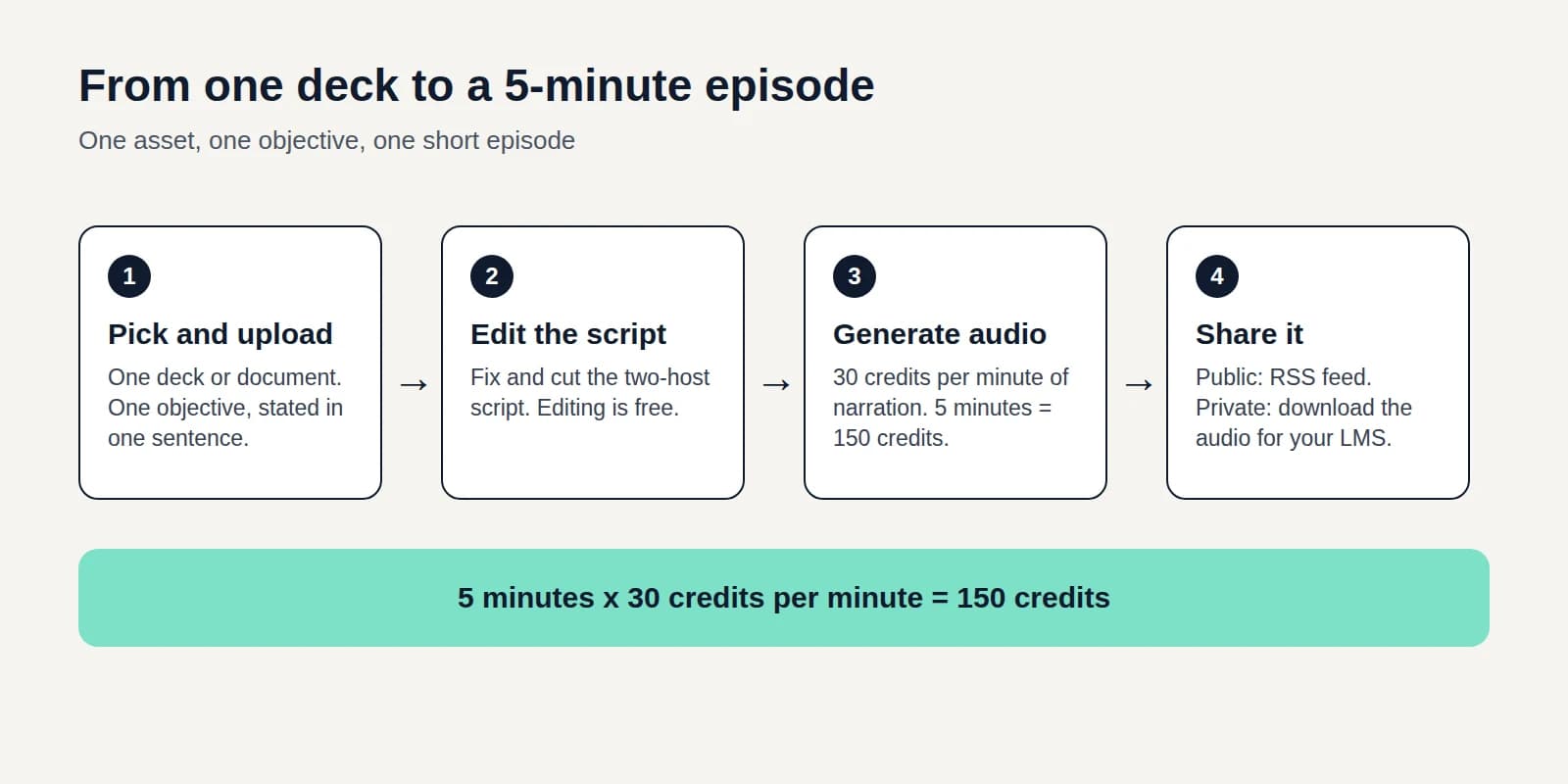
Review the lesson's narration and visuals first. To retain slide layouts, create a Voiceover with PowerPoint to video. To create illustrated scenes from a document, use AI Video. An Episode can also become a SCORM audio lesson.
In a Business or Enterprise workspace, open Download in the editor and choose Download as SCORM. Pick the file name, supported version, and completion threshold. For an Episode, choose audio or video. You can optionally prevent skipping ahead. Download saves your current editor edits and prepares the media before building the self-contained ZIP.
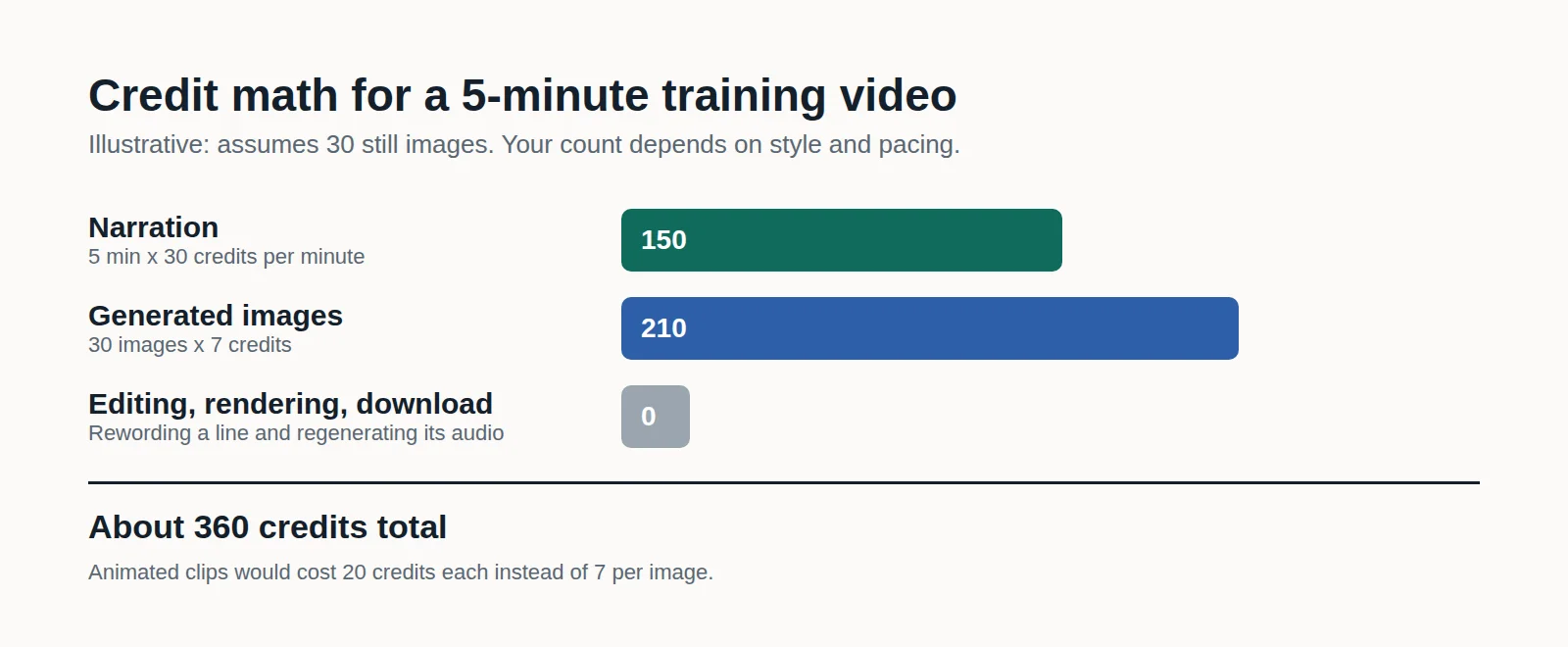
SCORM packaging and rendering use no credits. Generating narration or visuals follows the usual billing rules. See the walkthrough for audio choices, plan eligibility, and error messages.
How should you test a SCORM package before rollout?
Import one ZIP and use a test learner account, not only the administrator's preview. Check the complete attempt:
- Launch the activity and confirm that the media plays, including any captions.
- Play part of the lesson, then exit before reaching its completion threshold.
- Reopen the activity and check that playback resumes at the saved position.
- Continue until you reach the threshold, then inspect the learner's completion record.
- Repeat on the browser or device your learners use, and check the LMS's upload-size limit.
SCORM Cloud can help isolate package behavior from LMS configuration. A successful reference-player test still needs a check in the destination LMS. Neither this guide nor Jellypod's feature page claims a SCORM Cloud certification.
Changing a Jellypod lesson does not update a ZIP already uploaded to an LMS. Review the edited lesson, export a new package, and ask your administrator how replacing it affects existing learner attempts.
Can you convert any MP4 into SCORM with Jellypod?
Jellypod's export packages its rendered Episodes, Videos, Shorts, and Voiceovers. It is not a general upload-any-MP4 wrapper, and it does not import a third-party SCORM course. Start with supported source material, create and review the lesson in Jellypod, then export it.
For a training deck, follow PowerPoint to video. For a policy or SOP, follow employee training videos. Then use SCORM export to deliver the reviewed lesson through your LMS.