You can make an employee training video with AI by giving a tool the document people already have (an SOP, a policy PDF, a deck) and letting it draft the narration and scenes, then checking every line against the source before anyone sees it. The review is the part that decides whether the video is safe to publish.
In Jellypod's Video creator, you attach the document, pick a host voice and a visual style, choose a length from 3 to 25 minutes within your plan's limit, and generate. Narration costs 30 credits per minute, each generated image costs 7, and editing, rendering, and downloading are free after that.
Watch a training-deck example
This 208-second Jellypod Video adapts this onboarding and employee-development deck into new whiteboard illustrations. It covers onboarding goals, training gaps, ADDIE, training evaluation, and training versus development. Read its narrated script alongside the source.
Adapted from Lumen Learning's Human Resources Management, Module 7 under CC BY 4.0: five slides selected, a credit slide added, and narration and illustrations adapted by Jellypod. No Lumen endorsement is implied. This educational example does not establish safety-procedure accuracy or learner outcomes.
Create a training video, then add your source. Choose Video for new illustrations or Voiceover to keep the original slide layouts on screen. Slide-locked narration is covered in AI voiceover for training videos. Initial generation writes the script and narration together; review both against the source, edit and regenerate affected narration, then export. Compare the training formats or download a pilot worksheet to measure production and review effort separately from learning results.
Key takeaways
- Keep each video to one objective and three to six minutes. Split anything longer into two videos.
- Generation is where credits are spent: 30 per minute of narration, 7 per generated image, 20 per animated clip. Rewording a line and regenerating its audio costs nothing within the daily regeneration limit.
- Review the script against the source document. Use Upload Script when the wording must stay exact, as in safety or compliance steps.
- Download an MP4 for your intranet, or export a SCORM ZIP on Business or Enterprise for LMS playback completion and resume. Upload either file to your LMS yourself.
How do you make an employee training video with AI?
Five steps, in the order that saves rework:
- Pick one objective for the video, such as "a new hire can complete the badge-access request."
- Attach the source (a document, a URL, pasted text, or audio) or click Upload Script if you already have finished narration.
- Choose the host, language, visual style, length, and orientation. Landscape is the default for Video.
- Generate, then read the script in the editor against the source.
- Fix wording, regenerate the changed audio, and render. Download the MP4, or use SCORM export on Business and Enterprise for learner completion and resume in your LMS.
Two starting modes matter for training. Attaching a document as a source lets Jellypod summarize and rewrite it into spoken language. Upload Script keeps every word in your order and never rewrites it, which is the right choice when a step or warning has to be verbatim. Jellypod reads [Speaker name] lines to assign up to four hosts.
What happens when the process changes and you edit the video?
Training goes stale the day the process changes, so this is where tools differ most. In Jellypod's editor, narration is split into paragraphs that match the generated audio. Rewording one marks only that paragraph stale. You regenerate its audio (free within the daily limit), and the timeline reflows so visuals stay lined up with the words they illustrate.
Reflowing does not redraw the picture. If a paragraph changed enough that its visual probably no longer fits, that visual gets a "Needs regenerating" badge. Regenerating one visual costs 7 credits, and you can also replace it with your own screenshot. Splitting or deleting a paragraph never triggers a regeneration. Rendering waits until every paragraph has audio.
The practical effect is that a changed step means editing a sentence, not reshooting a video. Most updates cost zero credits, and the ones that touch a visual cost 7 each.
How long should an employee training video be?
Three to six minutes for one topic. Guo, Kim, and Rubin's 2014 study of 6.9 million video-watching sessions across four edX courses found that shorter videos were much more engaging. The data comes from open online university courses, not workplace training, so treat it as a strong default rather than a rule for your team. Mandatory compliance content may hold attention differently than a course people chose.
If a topic needs more than about six minutes, make two videos. Video offers 3, 5, 7, 10, 15, 20, and 25 minute lengths, capped by plan, so a 5-minute video is one click. For a look at how length varies by video type, see what an explainer video is, and for structuring the narration, the explainer video script template.
How much does an employee training video cost with AI?
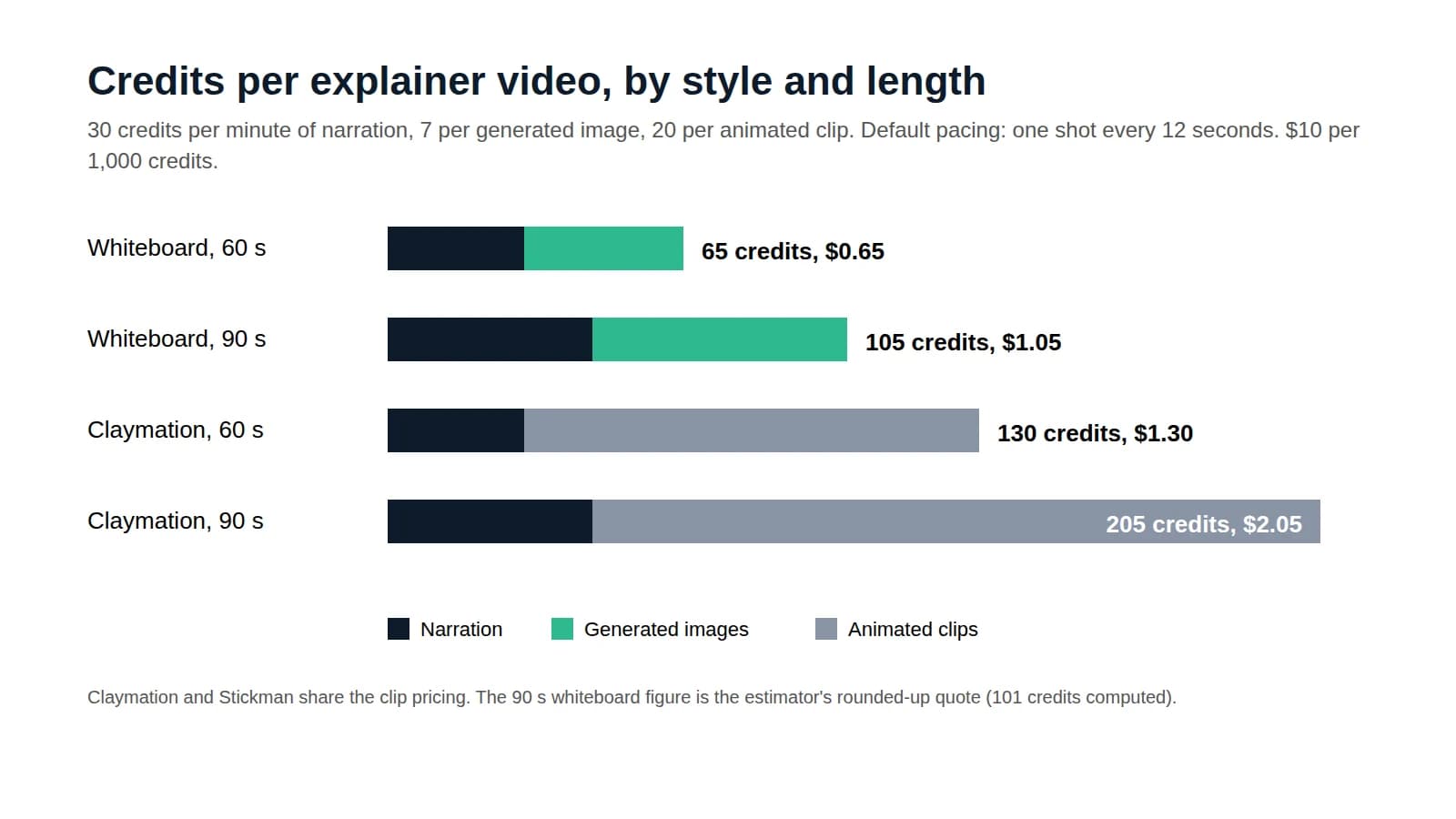
Credits follow one formula from the credits guide: 30 per minute of narration, 7 per generated image, and 20 per generated video clip. Before you generate, Jellypod shows a ceiling and reserves it, then settles to what was actually generated. If generation fails, nothing is charged.
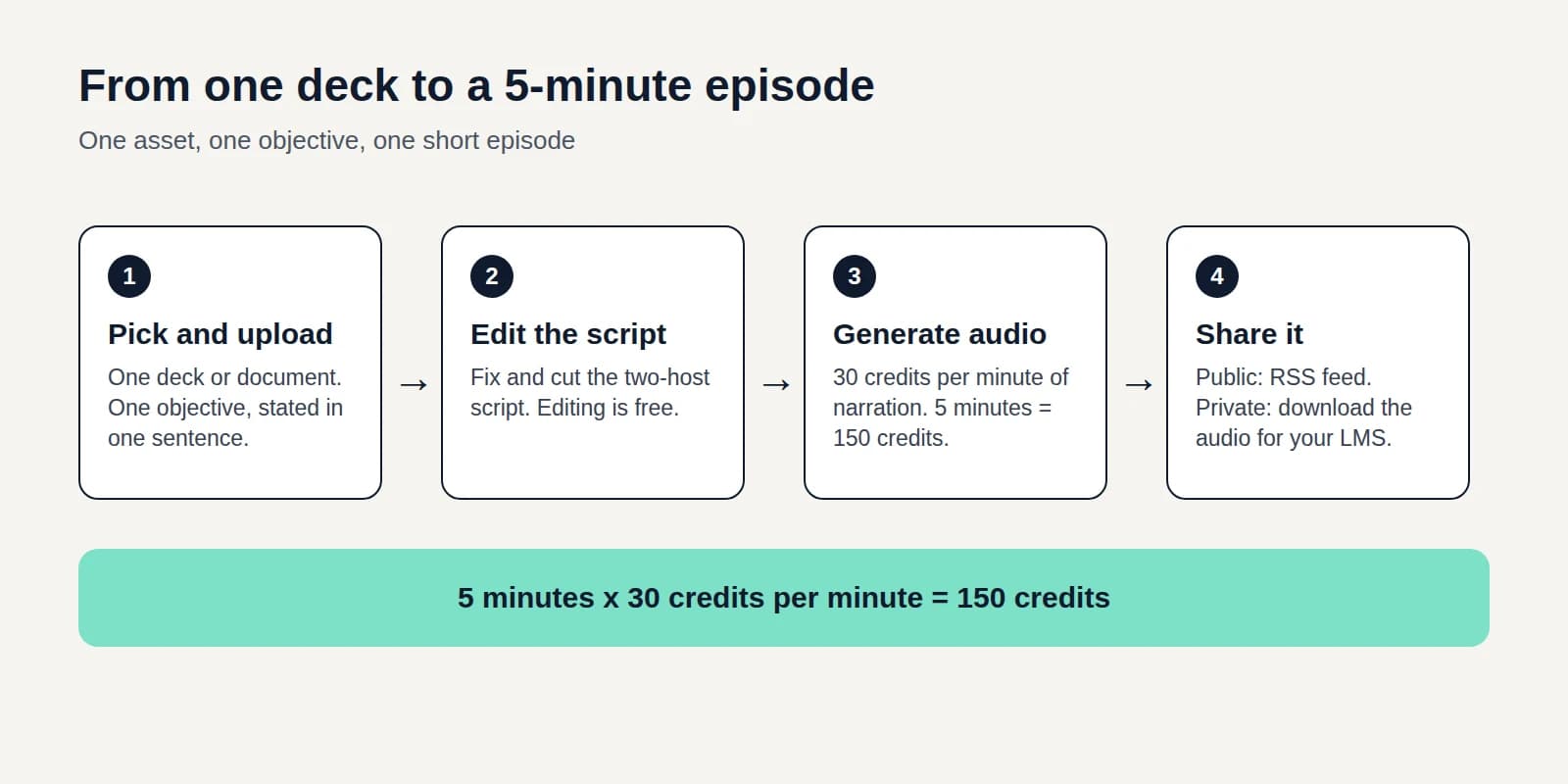
For a five-minute video, narration is 150 credits. Add visuals on top: if it had 30 still images, that is 210 more, about 360 credits in total. That shot count is an illustration, since it depends on the style and pacing you pick. Whiteboard and Sketch styles only draw images, so they avoid the 20-credit clips.
 Illustrative math using the per-minute and per-image rates above.
What that means in money depends on your plan's monthly credits and the current price, so check the pricing page instead of trusting a number in a blog post. Plans also cap video length (15, 20, or 25 minutes, listed in plans and pricing), and the trial and credit rollover rules are there too.
Against hiring it out, we cannot give you a reliable agency figure here. Prices vary widely by production method, and what an explainer video costs breaks that down and shows the same credit math for a shorter video.
Can you trust an AI-made video for safety or compliance training?
Only after a person checks it. The TalentLMS 2026 L&D Report found that 88% of HR managers expect generative AI to affect how long it takes to create learning content, while 22% are concerned about the unreliability of AI-generated training content. Both concerns are fair.
Jellypod does not review your content for correctness. The script is editable text after generation, so the check is fast: read each paragraph against the SOP, confirm every step and warning survived, and regenerate any line you reword. For anything where the exact wording carries legal or safety weight, write the narration yourself and use Upload Script.
What does this look like on a safety SOP?
This is an illustrative walkthrough, not a customer result. Take a lockout-tagout SOP as a PDF.
- Attach the PDF as a source, pick a 5-minute length and a calm host voice. A drawn style such as whiteboard suits step-by-step procedures.
- Generate. Jellypod writes narration in plain spoken language and one visual per paragraph.
- Read it against the SOP. If a step is reordered or a warning is softened, fix the sentence and regenerate that paragraph's audio.
- Replace any generic visual with a photo of your actual equipment, since a stock-looking scene of a machine teaches less than your own.
- Review the finished video, choose Download as SCORM on Business or Enterprise, and upload the ZIP to your LMS. Use MP4 when playback tracking is not required.



Three of the visual styles available for a training video.
When the SOP is revised next quarter, you edit the affected paragraphs instead of starting over.
Where should you use video, and where is audio enough?
Use video when the learner has to see something: a click path in software, a physical procedure, a form layout. For policy updates, compliance refreshers, and onboarding context, audio is often enough and cheaper to make. Audio microlearning covers that side, including where it fails.
How do you deliver AI training videos through an LMS?
On Business and Enterprise, open Download in the editor and choose Download as SCORM. The ZIP includes your reviewed video and a player that records playback completion and resume in the LMS. The completion threshold defaults to 90% and can be set from 5% to 100%.
Upload the ZIP as a SCORM activity, assign a test learner, and check launch, resume, and completion before rollout. Choose the SCORM version your LMS supports. The package does not include assessment questions, so keep any knowledge check in your LMS or a separate course tool such as 360Learning, an AI-powered collaborative LMS where internal experts co-author courses. AI course building turns documents or prompts into structured courses, and 2,500+ L&D teams use the platform.
Frequently asked questions
Do I need video editing experience? No. Editing happens on the narration text and individual visuals in the editor. There is no timeline to align by hand, though a timeline is there if you want to trim or adjust volume.
Can I use my own slides or branding? Attach a deck as the source material for the script, and apply a brand kit for brand colors and logos. Your slides are input for the script, not shown as slides. To keep your own images on screen, use a Jellypod Voiceover instead.
Does it connect to my LMS? Business and Enterprise include SCORM 1.2 and SCORM 2004 4th Edition exports. Download the ZIP and upload it to your LMS for playback completion and resume. This is manual file delivery, not a native LMS connection. Jellypod does not include quizzes or assessment scores. See the export walkthrough.
What happens if the video needs to run longer than my plan allows? Durations above your plan's cap are locked in the picker. Split the topic into two videos.
Next step
Pick one process that changed recently, attach its document, and generate a three-minute video. Then read the script line by line and see how much of your review is editing a sentence. Create a Video.