
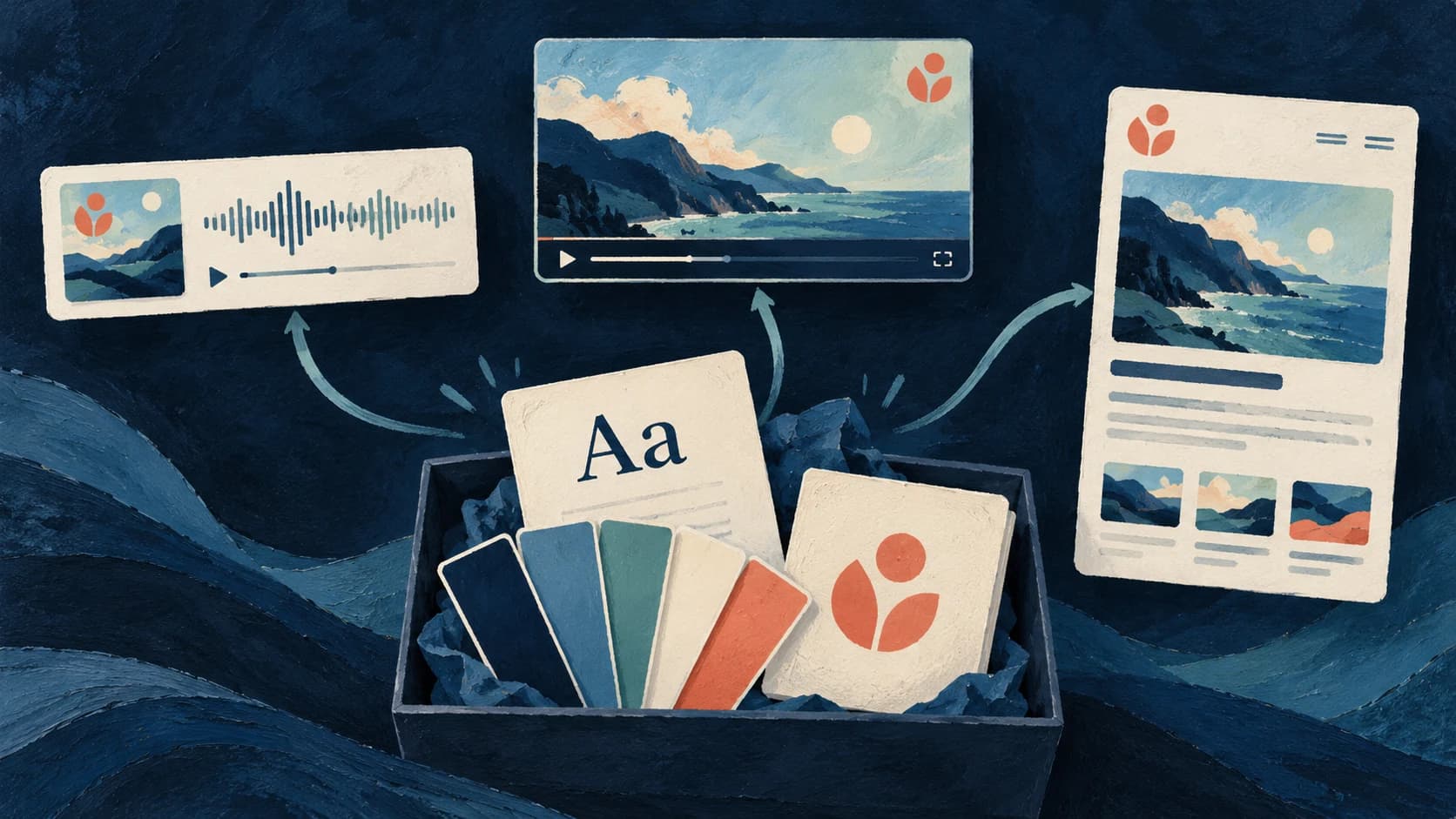
Brand Kits now carry your fonts, logo and colors through episode videos, captions and your podcast website.
Here's what's new:
- Your fonts throughout. Choose Google Fonts or upload your own Heading and Body fonts. Episode titles use your Heading font, descriptions use Body, and your podcast website uses both.
- More caption control. Pick a caption style separately from its font. Use your Brand Kit font or the style's own font. Caption contrast adjusts to keep words readable on branded backgrounds.
- Logo watermarks. Add your kit's logo to videos and choose its corner. Auto picks the version for a light or dark background.
- Episode backgrounds. Set a background for episode videos in your kit without changing your website palette.
- Reusable defaults. New episodes, shorts and videos start with your organization's default kit. Each podcast can follow that default or use its own kit.
- Update existing content. The editor shows when your kit has changed. Apply the latest colors, logo and fonts, switch kits, or choose No Brand Kit. Updating and switching use no credits.
For example, set your fonts and logo once, then use the same kit for your next episode video and podcast website. Existing videos keep their saved look until you update them, and generated images keep their original colors.
Open Brand Kits under Personalize in the Studio sidebar, or use the Brand Kit control below the editor preview. Even without a kit, the editor shows No Brand Kit so you can create one.
See Brand Kits for the walkthrough.
