Script to Video
Illustrate Your Script Line by Line
Your hosts voice your script word for word, with a drawn scene and caption on every line.
Start for free. No card required.

- Every Word Kept
- Up to Four Voices
- 28 Visual Styles
- Word-Synced Captions
See an approved script illustrated
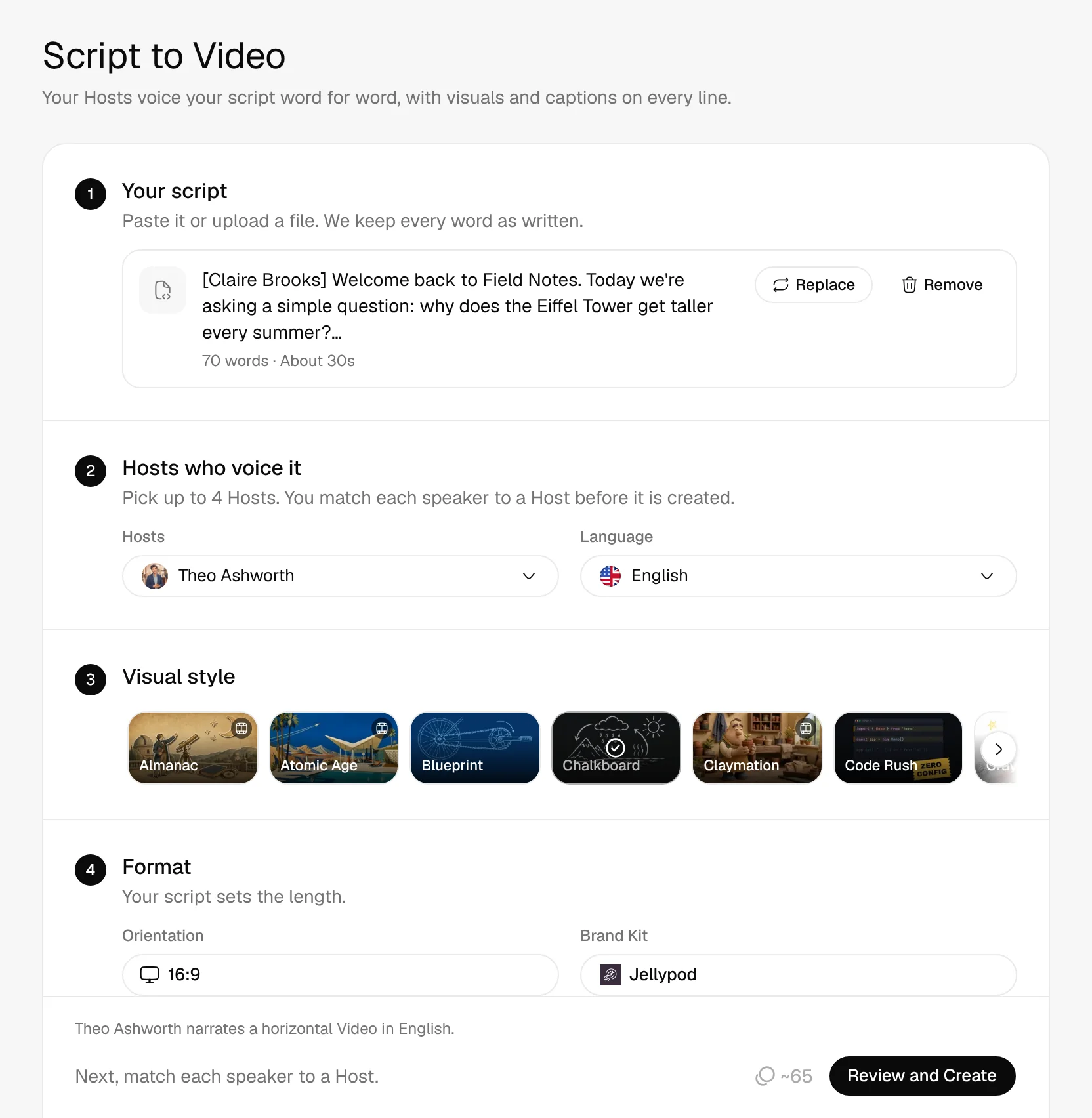
1Your script
expense-explainer-script.txt
[Claire Brooks]
Got a receipt from a client lunch or a work trip? Here's how to get your money back without chasing anyone.
Open the expense app and tap New expense. Take a photo of the receipt.
- Claire Brooks
- Whiteboard Explainer
- 16:9
2Jellypod made
A 46-second whiteboard explainer, read word for word by Claire Brooks, with a drawn scene for each line and captions that follow the voice.
Real Jellypod output.
How to turn a script into a video
- 1
Add your script
Paste the approved script. Files work too.
- 2
Pick hosts and a style
Match each speaker to a host and choose a visual style.
- 3
Download the video
Jellypod voices every line and draws the scenes. Download the MP4.
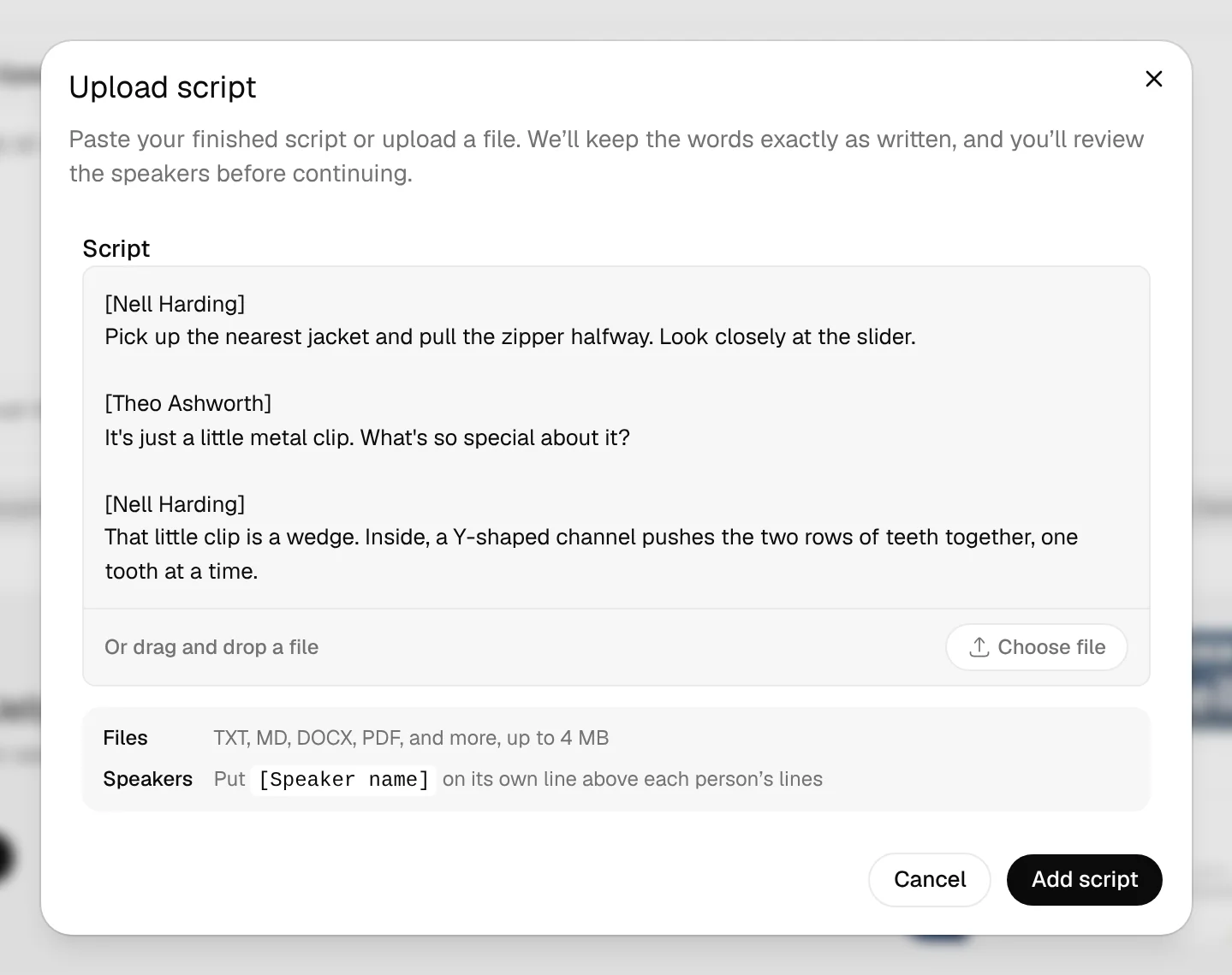
Every word voiced as written
Paste the script or upload the file. Jellypod keeps every word in your order.
- Speaker labels pick who says each line
- Stage directions stay out of the audio
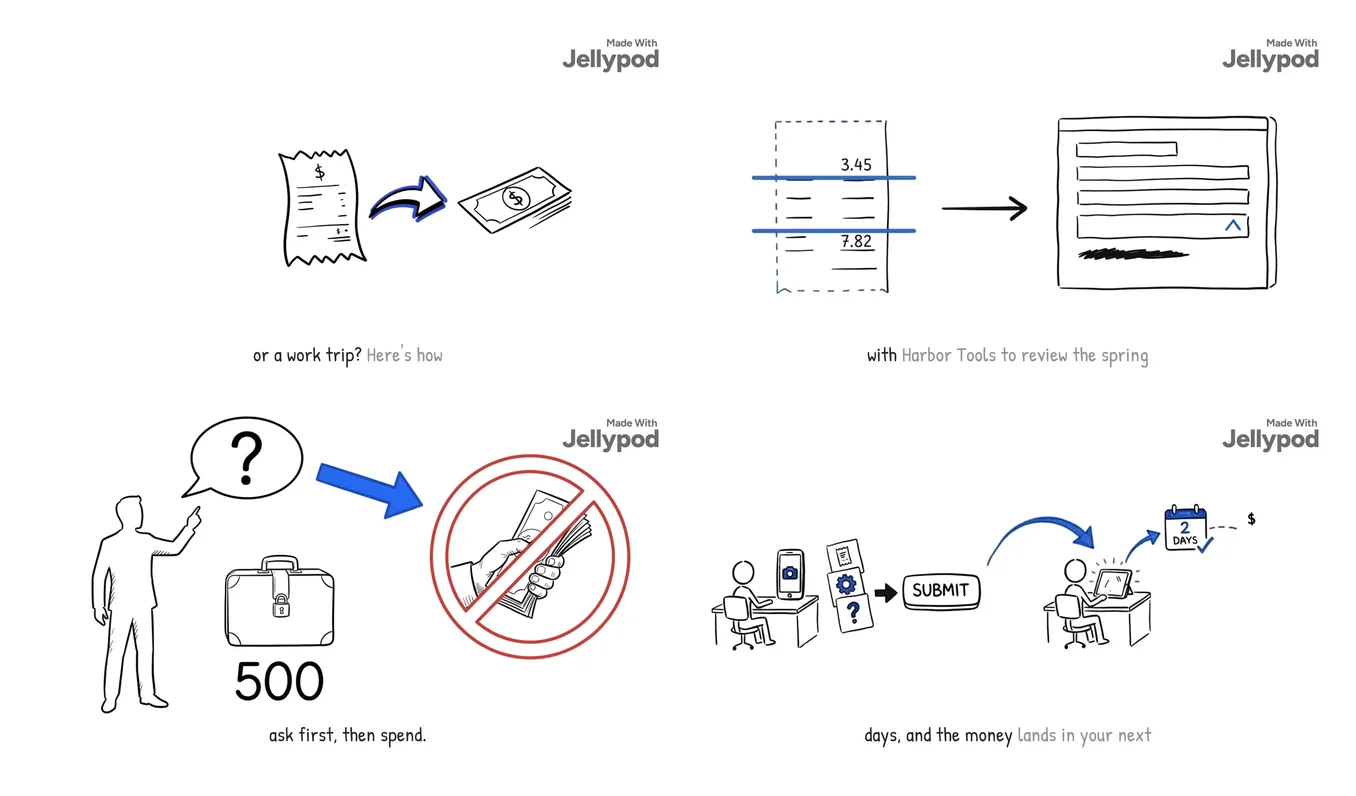
A scene for every line
Scenes cut where the voice does, in one of 28 styles.
- One look from start to finish
- Landscape, portrait, and square
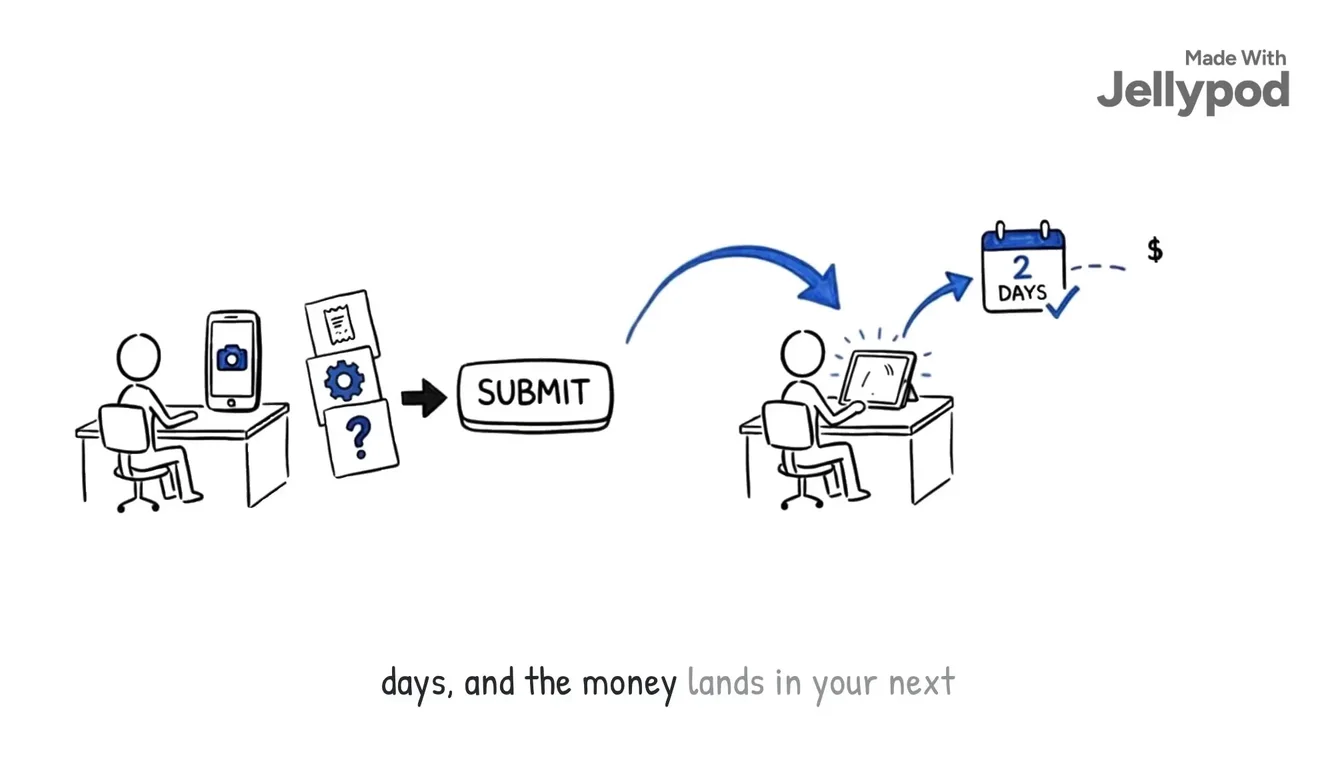
Fix one scene at a time
Regenerate a scene or re-voice a line without re-rendering the rest.
- Re-voice an edited line for free
- Download a 1080p MP4
4.7out of 5 on G2












Script to Video FAQ
Will an approved script stay word for word?
What happens to speaker labels?
Are stage directions read aloud?
What visuals does it create?
How long can a script-to-video be?
Is there a free AI script to video generator?
Can I change a line after it's voiced?
How is Jellypod different from InVideo, Pictory or HeyGen?
Last updated November 9, 2026
More workflows
All workflowsAudio to Video
VideosYour voice recording becomes a captioned video with matching visuals. Under 3 minutes makes a short.
How it worksSlides or PDF to Voiceover Video
VideosEach page stays on screen while your host narrates it.
How it worksIdea to Video
VideosA landscape video on your topic, scripted and narrated by your hosts with visuals and captions.
How it works
Make your first podcast or video
Turn any idea, document, or link into a podcast or video, in your own voice and 121 languages.