PowerPoint and PDF to Video
Narrate Your Slides
Upload a deck or PDF and a narrator talks through each slide while it stays on screen.
Start for free. No card required.

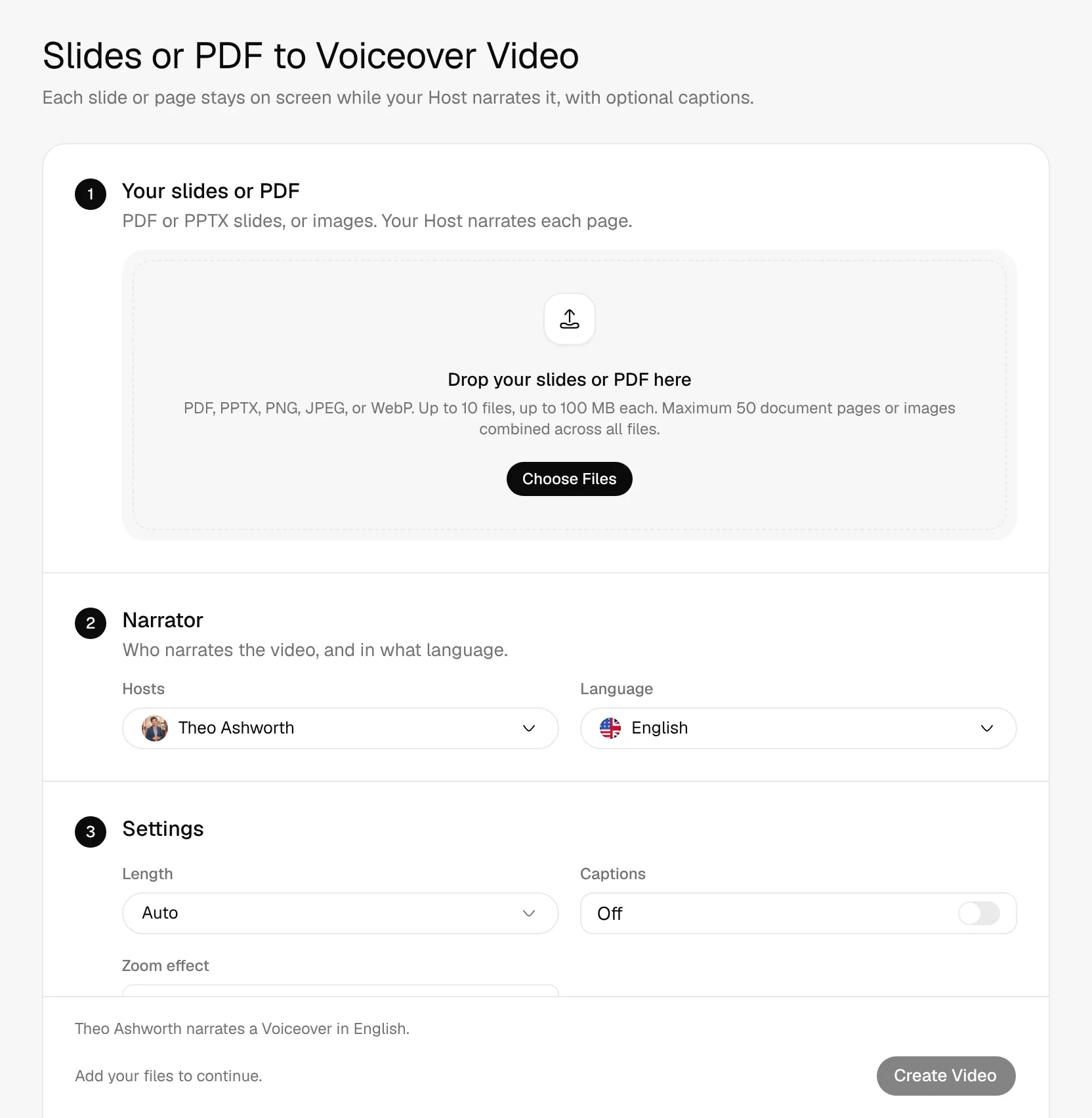
- PDF, PPTX, and Images
- Up to 50 Pages
- Your Design Untouched
- 121 Languages
Watch a PDF narrated page by page
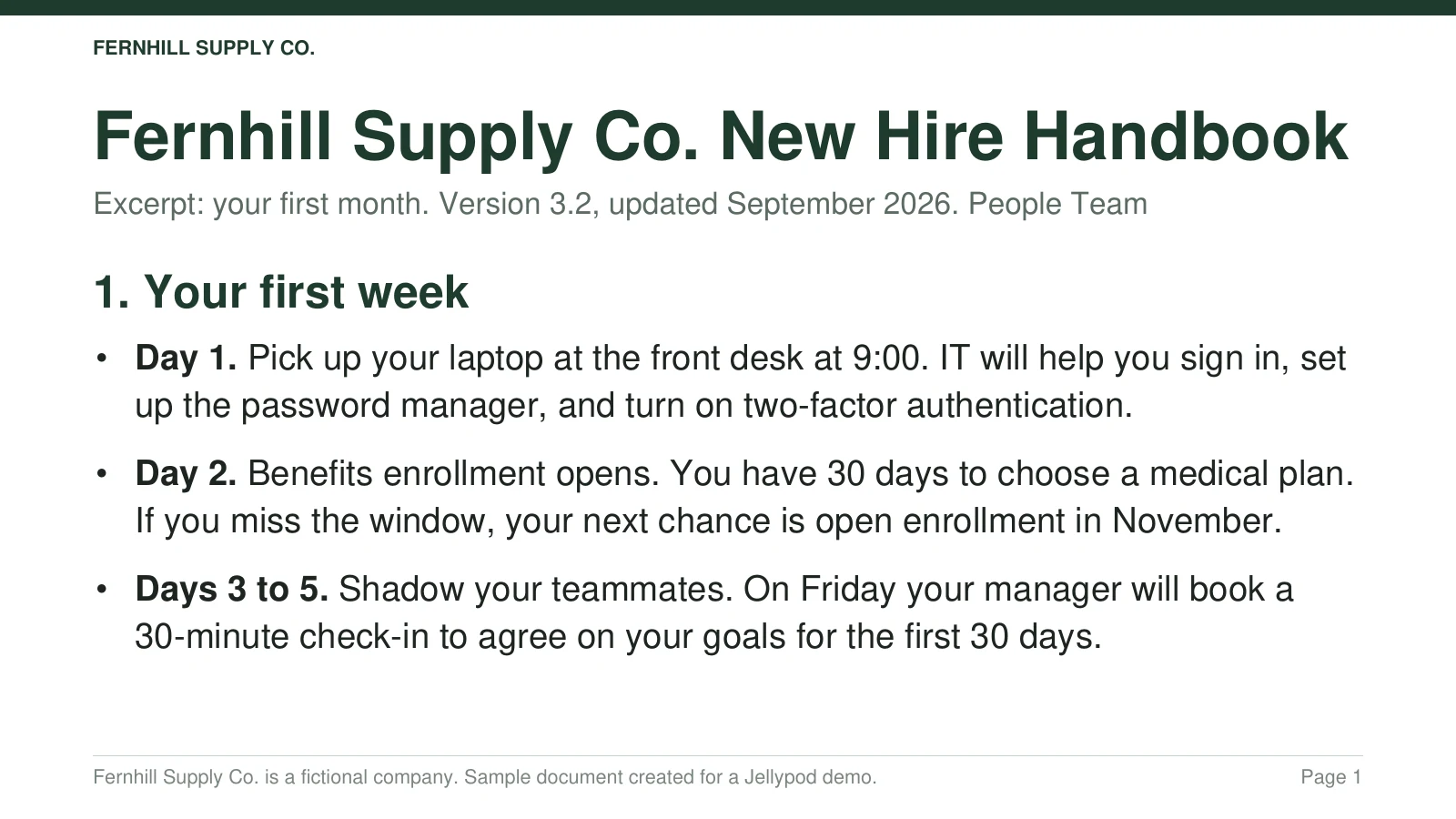
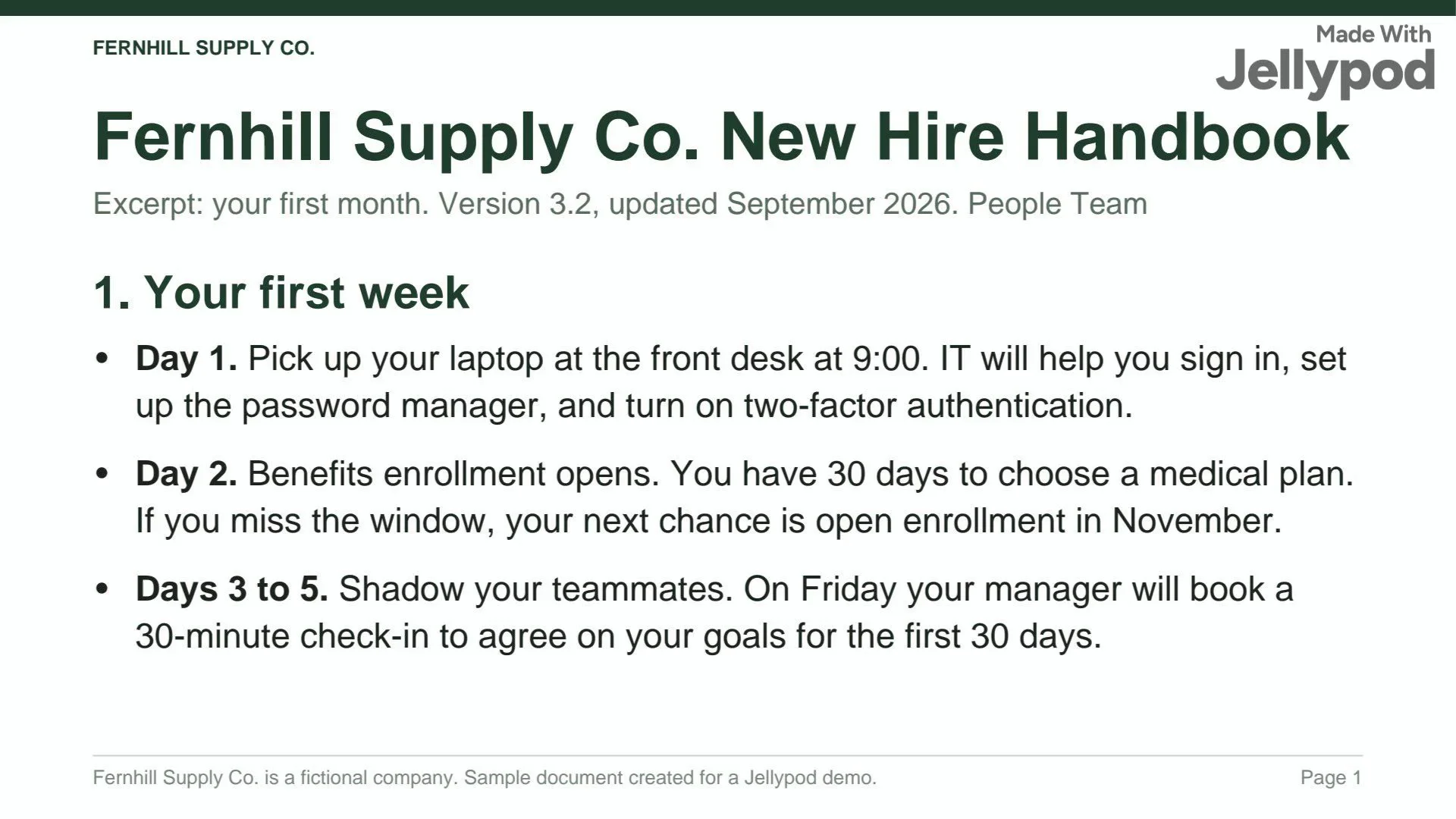
1Your PDF
- Captions off
- 16:9
2Jellypod made
A voiceover of the three-page handbook where each page stays on screen while the narrator talks it through.
Real Jellypod output.
How to turn a PowerPoint into a video
- 1
Upload your slides
PPTX, PDF, and slide images, up to 50 pages.
- 2
Pick a narrator
Choose the narrator, the language, and captions.
- 3
Download the video
Each slide stays on screen while it is narrated. Download the MP4.
Your slides stay as designed
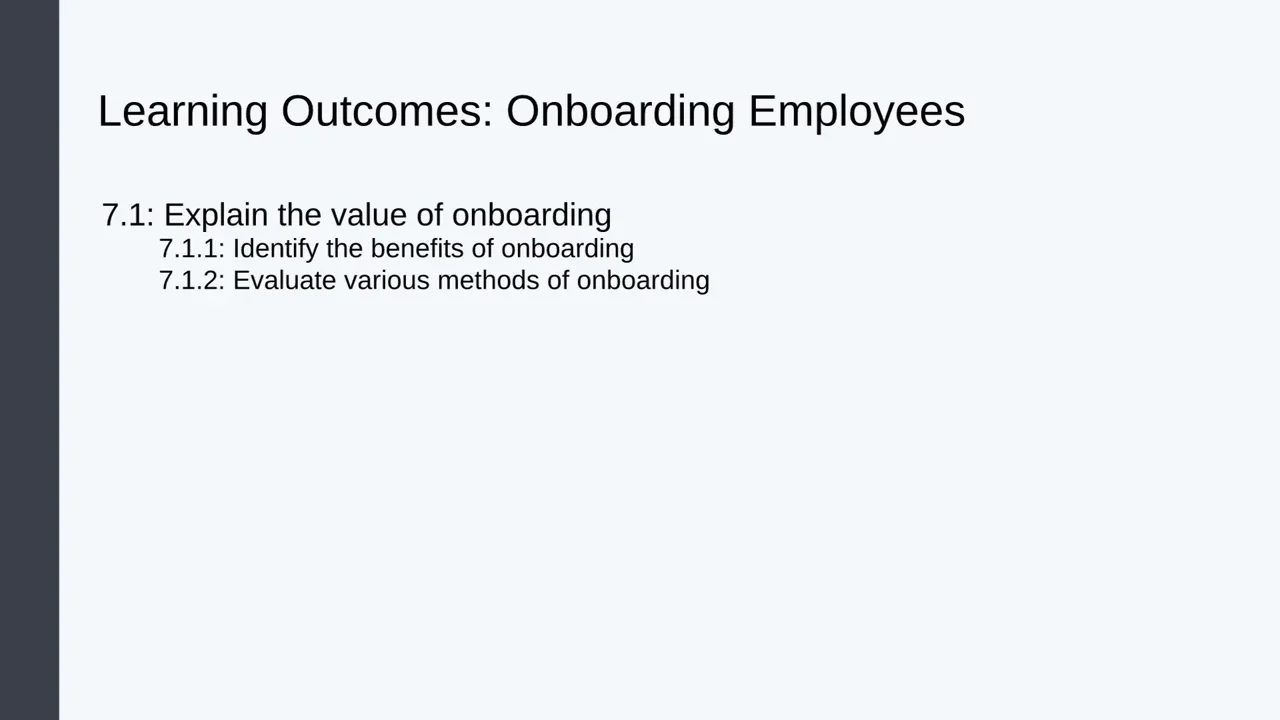
Every page stays on screen as you built it. Nothing is redrawn.
- Up to 10 files in one video
- Captions and a zoom effect when you want them
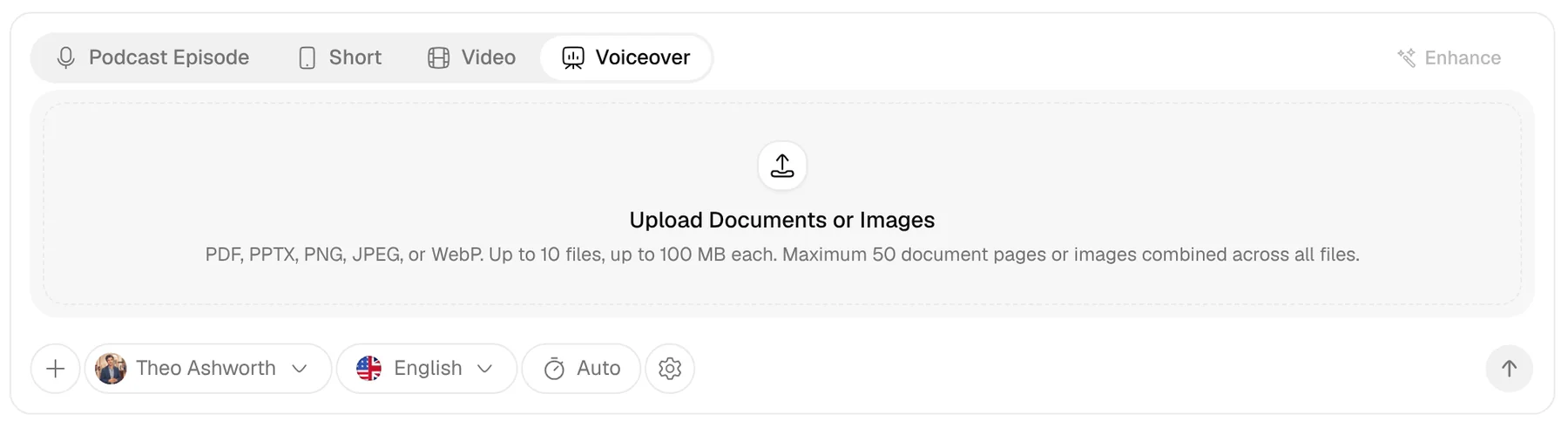
Pick the narrator and tone
Pick a narrator and language, and add a line of direction for the tone.
- One to four narrators
- Narrate in your cloned voice
Edit one line at a time
Rewrite any line and only that line is re-voiced.
- Slides advance with the voice
- Export a SCORM package for your LMS
4.7out of 5 on G2












PowerPoint and PDF to Video FAQ
How do I turn a PowerPoint into a video?
What files can I upload?
Can I turn PowerPoint into a SCORM package?
Do slide animations play in the video?
Can I choose the narrator and edit the result?
What if I want new visuals instead of my slides?
Does it keep my charts and figures?
How long can the PDF be?
Last updated November 9, 2026
More workflows
All workflowsAudio to Video
VideosYour voice recording becomes a captioned video with matching visuals. Under 3 minutes makes a short.
How it worksScript to Video
VideosYour hosts voice your script word for word, with visuals and captions on every line.
How it worksIdea to Video
VideosA landscape video on your topic, scripted and narrated by your hosts with visuals and captions.
How it works
Make your first podcast or video
Turn any idea, document, or link into a podcast or video, in your own voice and 121 languages.